
Introduction: How to prevent your VPS from “freezing” or running slow when trading with EAs
To run an EA (Expert Advisor) reliably, you need a well-tuned VPS (Virtual Private Server). If the VPS becomes slow or stops, it can lead to late entries/exits, loss of protections such as trailing stops, and unexpected losses.
This guide focuses on one goal: keep it running, keep it light. We’ll cover the practical steps in this order:
VPS specs → monitoring load → Windows settings → MT5 performance tuning → uptime monitoring → risk control for outages.

Why use a VPS for EAs (how it improves stability)
You can run an EA on a home PC, but a VPS offers clear advantages:
- You can operate on a 24/7 basis without leaving your PC on all the time.
- You’re less exposed to home issues like power outages, internet dropouts, or router failures.
- Choosing a region close to your broker can reduce order latency (this matters most for short-term / scalping EAs).
- It’s easier to manage multiple EAs and multiple accounts in a clean, organized setup.
Related: VPS vs Home PC for MT4/MT5 EAs: Cost, Latency, Uptime & Best Setup
VPS specs: a practical baseline (based on EA count and accounts)
The right VPS plan mainly depends on how many EAs (and how many MT5 instances) you run at the same time. It also depends on how heavy your setup is (complex calculations, many charts, lots of indicators). In the end, you should measure real usage in Task Manager and adjust.
- 1–2 EAs (roughly 1 MT5): CPU 2 cores, around 2GB RAM
- 3–5 EAs (multiple MT5 / multiple charts): CPU 3–4 cores, 4GB+ RAM
- Many accounts / many EAs: CPU 6+ cores, 8GB+ RAM
An SSD is strongly recommended. MT5 builds up logs and cache over time, and SSD storage tends to feel more stable and reduces “disk wait” freezes.
Use Task Manager to watch your load (spot bottlenecks early)
If you run too many EAs or keep MT5 on heavy settings, CPU and memory get squeezed, which can cause lag and freezes. Start by checking where the bottleneck is in Task Manager.
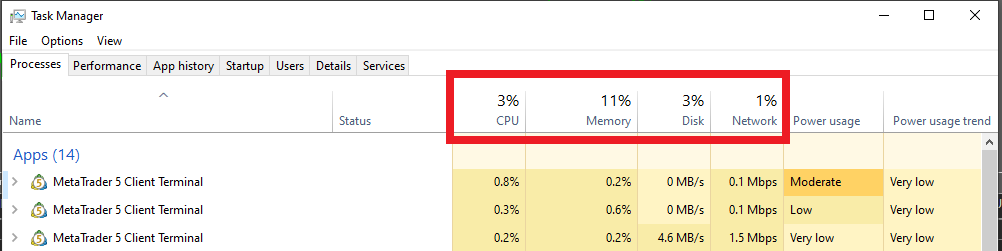
The key is to catch “stuck” load early (CPU pegged high, memory pressure, or disk waiting).
- CPU: Is it constantly above 80%? Short spikes are fine, but “always high” is risky.
- Memory: Is there almost no free RAM, or frequent swapping? That’s a common reason for sudden slowdowns.
- Disk: Is disk usage pinned high? This can be caused by huge logs, Windows updates, or antivirus scans.
- Network: Any unusual traffic? Check for unnecessary services or sync apps running in the background.
If you don’t have enough headroom, reduce the number of MT5/EAs, apply the MT5 tuning below, and if it still doesn’t improve, consider upgrading your VPS plan.
Windows settings (prevent sleep, updates, and surprise restarts)
A VPS is still Windows under the hood. If the settings are sloppy, you can get “surprise stops” or forced restarts. At a minimum, lock down these points:
- Power settings: Set sleep to “Never” (your EA won’t run while the system is sleeping).
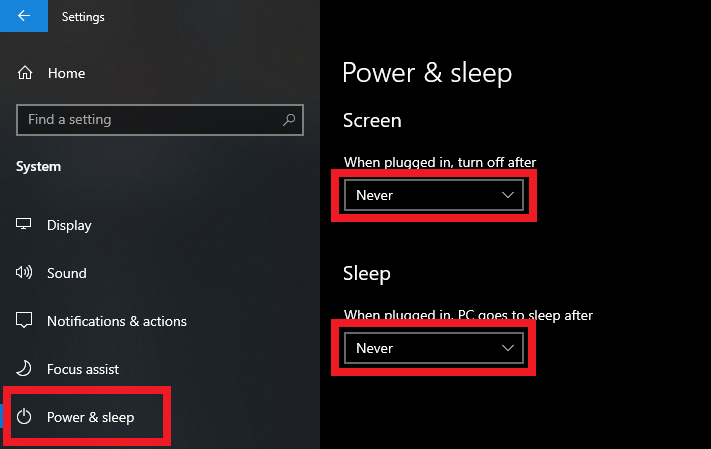
For EA operation, sleep and screen-off timers are usually best disabled.
- Windows Update: Prevent auto-restarts after updates (use active hours and restart controls so MT5 won’t be left offline).
- Screen saver / unnecessary background apps: Disable anything you don’t need (wasted resources can destabilize your VPS).
Extra note (a common surprise): If you simply disconnect an RDP session, MT5 usually keeps running. But if you log off / sign out, the session can end and MT5 may stop. After maintenance, finish with “Disconnect,” not “Sign out,” as a rule.
How to make MT5 lighter (reduce CPU and memory use)
Before upgrading your VPS, remove wasted resource usage inside MT5. Below are the adjustments that usually help most, in order.
1. Reduce the number of bars in charts (Max bars in chart)
Go to Tools → Options → Charts and check Max bars in chart.
The default is often set high. If it’s higher than you really need, MT5 will use more memory. Setting it to something like 1000 can make MT5 feel lighter (but don’t set it too low if your EA needs deep history).
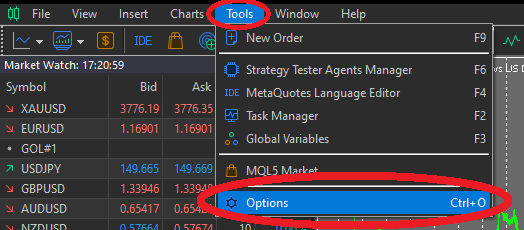
Open Options first, then check the Charts tab settings.
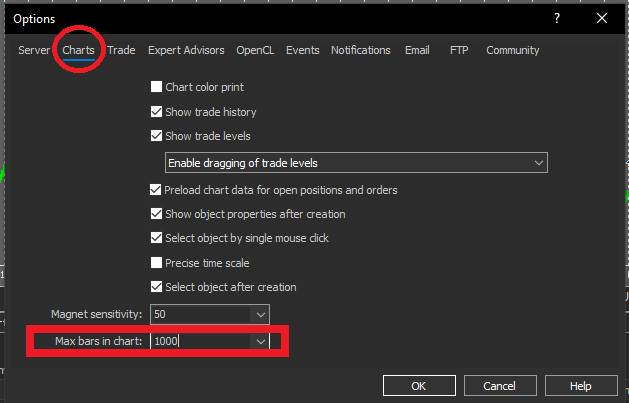
Keeping only what you need helps MT5 stay stable and predictable.
2. Turn off services you don’t use (Community → Specify services)
Go to Tools → Options → Community, then in Specify services, disable services you don’t need.
Features like Calendar / Market / Signals / Articles / Code Base are usually safe to keep off if you only use MT5 for EA trading.
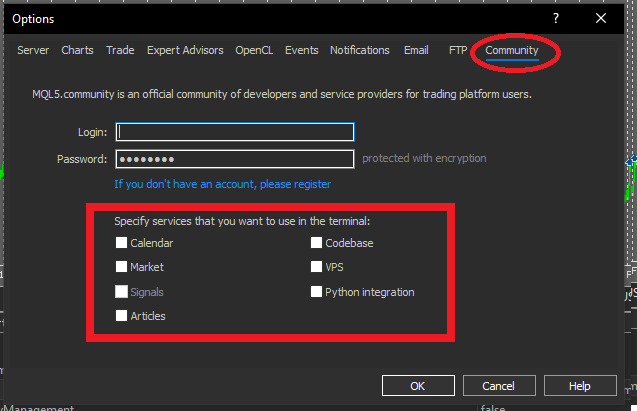
Even turning off unused features can cut background traffic and processing.
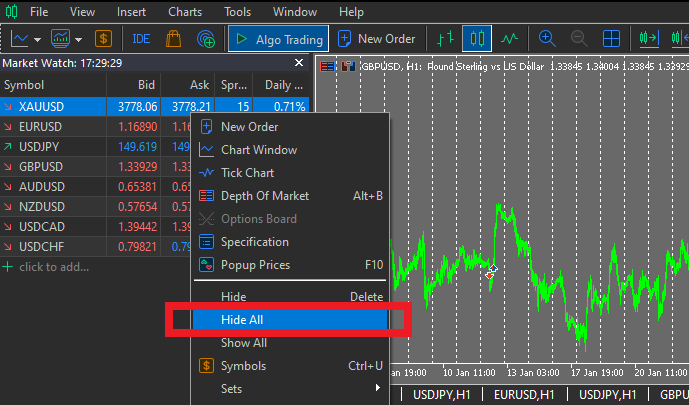
3. Hide unnecessary symbols (Market Watch)
In Market Watch, right-click → select Hide All, then show only the symbols you actually trade. Too many listed symbols can increase update load.
4. Keep open charts to a minimum
The more charts you keep open, the more memory and rendering load MT5 uses. Limit charts to the pairs and timeframes your EA truly needs, and close the rest.
5. Remove unnecessary indicators / EAs
Right-click on the chart → open Indicators List or Expert Advisors, then remove what you don’t need. Heavy custom indicators are a common cause of CPU being pinned high.
6. Turn off Push Notifications
Go to Tools → Options → Notifications and disable Enable Push Notifications to stop background push processing.
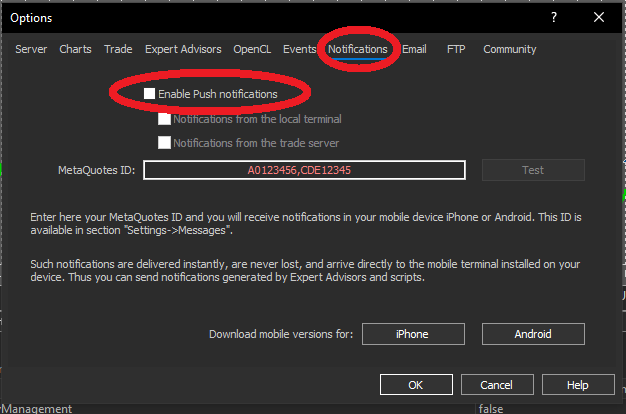
Disable notifications you don’t use to reduce unnecessary workload.
7. Disable news (Server / News)
Go to Tools → Options → Server and disable Enable news to stop receiving news feeds you don’t need.
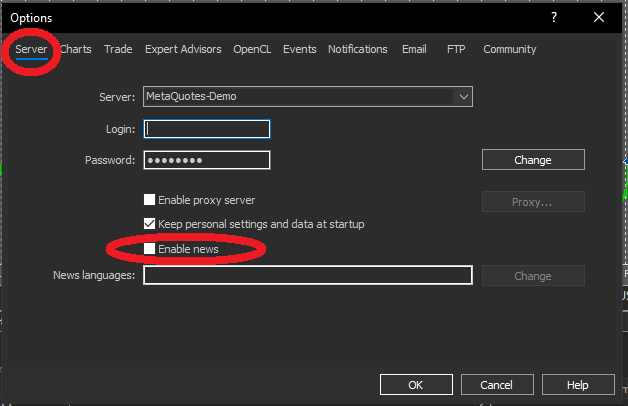
If you don’t need news in MT5, turning it off reduces background traffic and processing.
8. Delete old logs regularly (Journal / Experts / Tester)
Over time, MT5 builds up log files in Journal, Experts, and Tester. If you never clean them, disk space can shrink and cause errors or instability.
A simple habit—deleting old logs weekly or monthly—helps prevent disk-related issues, especially on smaller VPS plans.
Related: MT5 Log Cleanup: Delete Journal, Experts & Strategy Tester Logs (Safe Manual Rotation)
Risk control for VPS/MT5 outages (order type makes a big difference)
If your VPS or MT5 goes down, the impact depends heavily on how your EA handles orders.
More protected even if MT5 stops (managed on the broker’s server)
- Pending Orders stored on the broker’s server
- SL/TP (Stop Loss / Take Profit) (if they are server-side, they can still trigger even when your terminal is offline)
Doesn’t work (or gets delayed) when MT5 is offline (terminal-side logic)
- Trailing Stop (often requires the terminal to be running)
- Time-based exits / partial closes / condition-based closes handled by the EA (won’t run while MT5 is down)
- EA safety logic (e.g., emergency close on volatility spikes, pausing on spread widening, etc.)
For more detail, see: MT5 EA order types: reduce latency/outage risk with server-side orders (SL/TP and pending orders)
When choosing an EA, don’t look only at returns. Also evaluate whether the strategy is designed to avoid “fatal damage” during downtime (server-side protection, and how much it depends on terminal-side safety logic).
Uptime monitoring (so you know the moment it goes down)
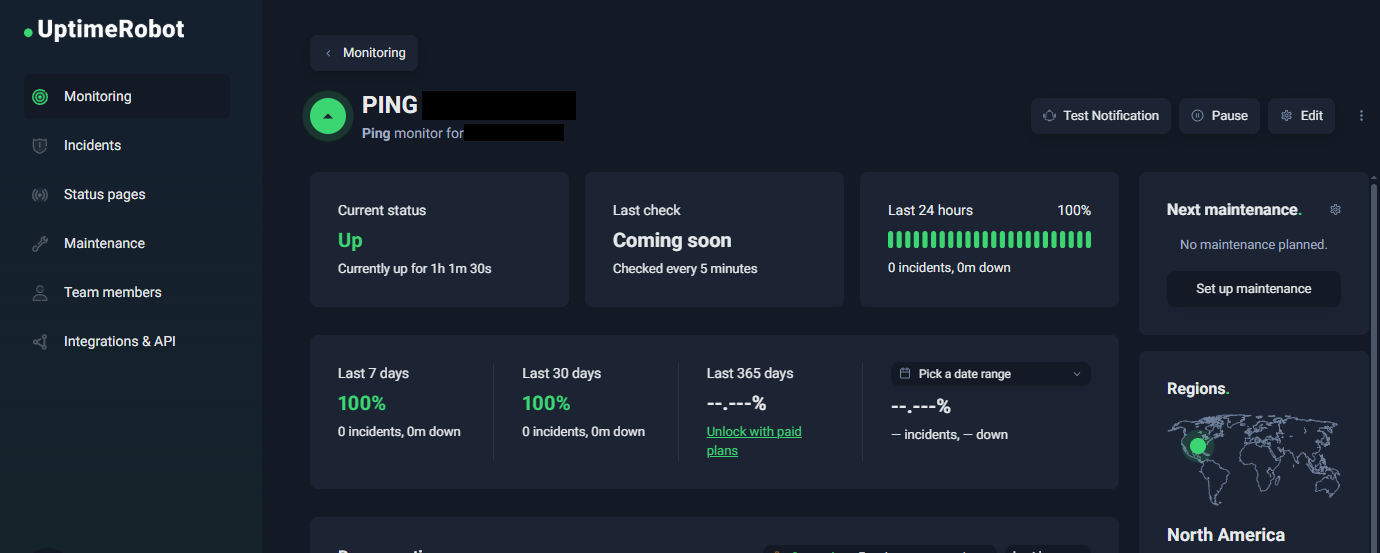
If you leave a VPS completely unattended, you may not notice a freeze or outage until damage is done. Adding external monitoring creates a simple but powerful setup: know immediately when it goes down. That alone can reduce risk and missed opportunities.
Related: MT5 EA VPS Monitoring: UptimeRobot Alerts + How to Catch “MT5 Stopped but VPS Is Up”
Operations checklist
- CPU: Not constantly pinned above 80%
- Memory: No RAM pressure (enough headroom)
- Disk: Enough free space; no abnormal high disk usage
- Windows: Sleep disabled; update restarts controlled
- MT5: Unused charts/indicators/services removed
- Logs: Old logs cleaned regularly
- Monitoring: Ping/uptime monitoring enabled and alerts working
- Risk design: Uses SL/TP and pending orders appropriately to protect during downtime
Summary: VPS stability comes from headroom, stop-prevention, and monitoring
For EA trading, “don’t let your VPS stop or slow down” is the baseline. Combine proper specs, Windows stop-prevention settings, MT5 performance tuning, and uptime monitoring to create a stable trading environment.
Also remember: outage impact depends on order type (server-side vs terminal-side). Don’t judge only by performance numbers—build and choose setups that can survive downtime without taking a fatal hit.
FAQ
- Q. What’s the difference between running an EA on a VPS vs a home PC?
- A. A VPS is designed for always-on operation, so it’s less affected by home problems like power outages or internet dropouts. It also removes the need to keep your personal PC running 24/7.
- Q. How much VPS spec do I need?
- A. It depends on how many EAs/MT5 instances you run. As a baseline, 1–2 EAs often works with around 2GB RAM. For multiple EAs or multiple accounts, 4GB+ is safer. Measure in Task Manager and upgrade if you lack headroom.
- Q. Which VPS region should I choose?
- A. In most cases, choose a region close to your broker’s trading servers. Lower latency can reduce execution delay, which matters more for short-term strategies.
 MQL5
MQL5
 Myfxbook
 YouTube
 X
X
 GOGOJUN