
This article is written for traders running multiple MT5 (MetaTrader 5) terminals on Windows. It explains, from a practical standpoint, how to:
- ① Launch all MT5 terminals at once using a batch (.bat) file
- ② Set them to start automatically (Startup folder / Task Scheduler)
The goal is simple: even after restarting your PC or VPS, all required MT5 terminals should launch automatically—no clicks needed.
If you haven’t yet installed multiple MT5 instances (same or different brokers), see the related guide below first. Setting up your environment properly makes the automation process much smoother.
Related article:
How to Run Multiple MT5 Instances on Windows/VPS | Separate EA Accounts Under the Same Broker
Preparation: Standardize MT5 Installation Location (Root of C Drive)


Assumption: In this guide, each MT5 installation is placed directly under the C drive, such as:
C:\HFM Metatrader 5C:\MetaTrader 5 IC Markets (SC)
You do not need to create a dedicated parent folder like C:\MT5, although you may if you prefer.
Why install directly under C:\?
- Shorter file paths (fewer issues with spaces or parentheses)
- Clearer write permissions (reduces UAC-related errors)
- Easier backup and duplication (copy the entire folder when needed)
MT5 can technically run from Program Files, but for multiple-instance setups, placing it directly under C:\ tends to cause fewer permission and path-related issues.
If you experience UAC-related problems, refer to:
MT5 × EA UAC Permission Errors: Causes and How to Avoid Them
- If you are relocating an existing installation, copy the entire MT5 folder and make sure
terminal64.exeexists directly inside each folder.
[Batch Launch] Start Multiple MT5 Terminals Sequentially
Opening several MT5 terminals manually is tedious. Instead, create a batch file that launches all of them with a single double-click.
Step 1: Create a Batch File Using Notepad
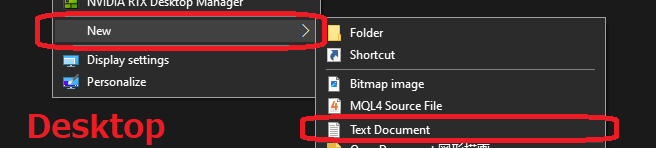
Create a new text file on your desktop and paste the script below.
Adjust the folder paths to match your MT5 installation folders.
@echo off
rem ===== MT5 Batch Launch Script =====
setlocal

rem (Optional) Wait for network to stabilize (seconds)
set WAIT_NET=10
timeout /t %WAIT_NET% /nobreak >nul

rem ---- First MT5 (explicit working directory) ----
start "" /D "C:\MetaTrader 5 IC Markets (SC)" "terminal64.exe" /portable
timeout /t 3 /nobreak >nul

rem ---- Second MT5 ----
start "" /D "C:\HFM Metatrader 5" "terminal64.exe" /portable
timeout /t 3 /nobreak >nul

rem ---- Add more instances as needed ----

endlocal
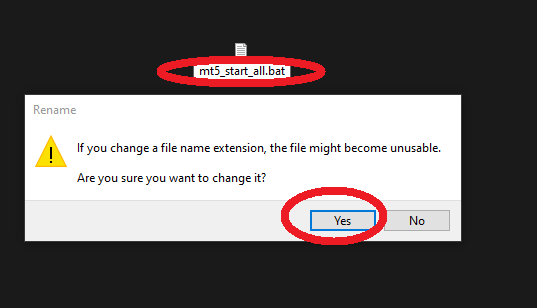
Example file name: mt5_start_all.bat
Important: Change the extension from .txt to .bat.
If file extensions are hidden, enable “File name extensions” in Windows Explorer.

Step 2: Run the Batch File
Double-click mt5_start_all.bat, and each MT5 terminal will launch one after another.
Key points:
start "" /D "folder" "terminal64.exe"ensures the correct working directory is used. This reduces configuration mix-ups in multi-instance setups.timeout /t 3adds a short delay between launches, reducing sudden CPU and RAM spikes. If you run many terminals, increase the delay to 5–10 seconds.- To add or remove terminals, right-click the batch file and select Edit.
[Recommended] Automatic Launch via Startup Folder
If you want the simplest and most stable solution, use the Windows Startup folder.
When you log in, the batch file runs automatically and launches all MT5 terminals.
Steps: Add the Batch File to Startup
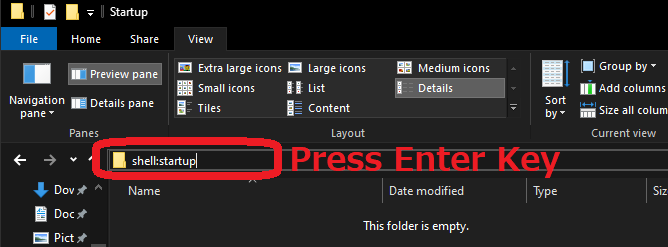
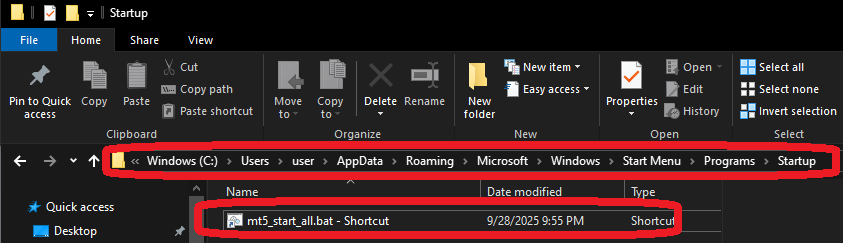
- Open File Explorer and type
shell:startupin the address bar. - Copy
mt5_start_all.batinto the Startup folder (a shortcut also works).
Important: The Startup folder runs programs after login.
If you operate a VPS unattended, make sure auto-login is enabled. Otherwise, MT5 will not start after a reboot.
[Advanced] Use Task Scheduler for Delayed Start and Retry
If MT5 fails to start immediately after login—due to high load or network delays—use Windows Task Scheduler. It allows delayed startup and automatic retry.
Basic Configuration
- Open “Task Scheduler” → “Create Task”.
- General: Name it (e.g., MT5 Auto Start). Select Run only when user is logged on (MT5 is a GUI application).
- Triggers: Choose At log on. Optionally set a delay (e.g., 30 seconds).
- Actions:
Action: Start a program
Program/script:C:\mt5_start_all.bat
Start in:C:\(adjust to match your batch file location) - Conditions: Enable “Start only if the following network connection is available”.
- Settings: If the task fails, restart every 1 minute, up to 3 times (for example).
Note: Avoid the “At startup” trigger. It runs in Session 0 (non-interactive mode), and MT5’s user interface may not appear.
For MT5, “At log on” is more stable.
Shutdown Script (Force Close – Use with Caution)
This is for emergency shutdown only. Forcing MT5 to close may result in unsaved data or log corruption. Use it only when necessary.
@echo off
taskkill /IM terminal64.exe /F
rem This closes all MT5 instances.
rem Use filters if you need to target specific terminals.

 MQL5
MQL5
 Myfxbook
 YouTube
 X
X
 GOGOJUN