
Goal: Place your EA files in the correct folders and get MT5 ready to run safely and reliably.
This page follows a simple flow: “1) Prepare MT5 → 2) Place EA files → 3) Safety switches (AutoTrading / DLL / WebRequest) → 4) First checks and common fixes.” It focuses on the points that most people stumble on.
Before you start (skip this and you’ll get stuck later)
1) Install and launch MT5 (64-bit)
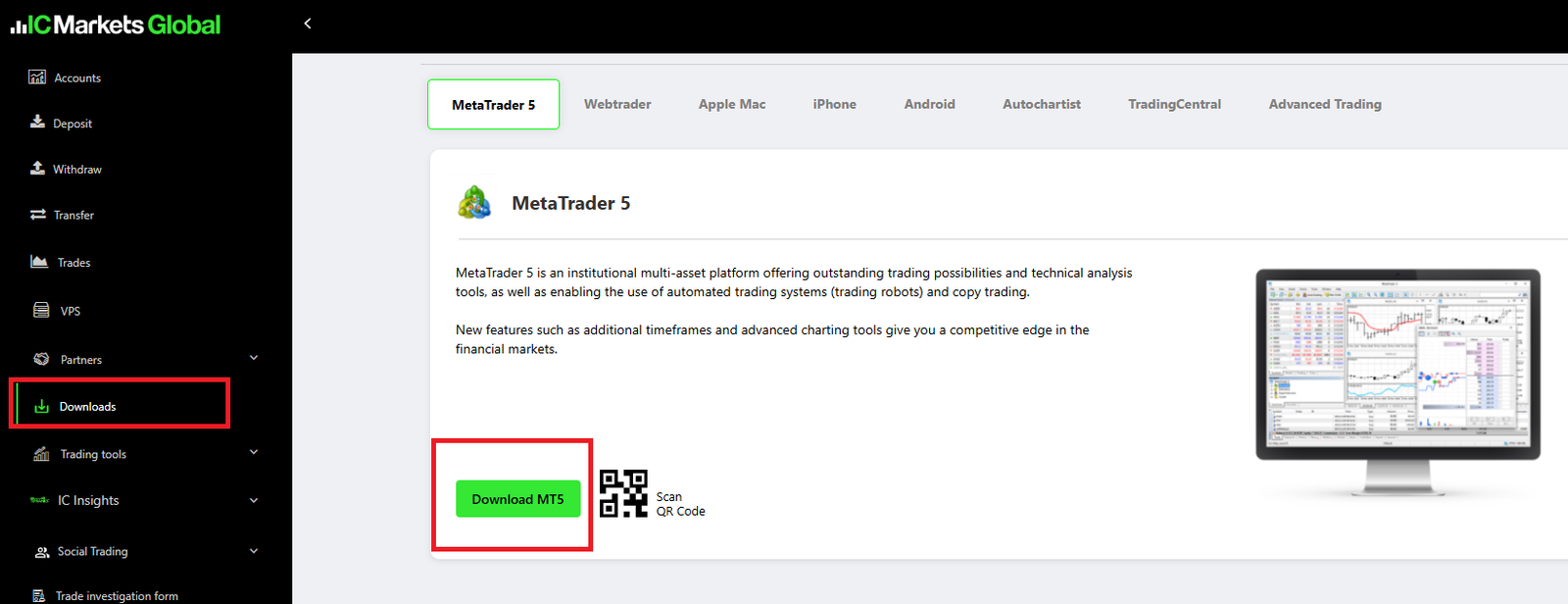
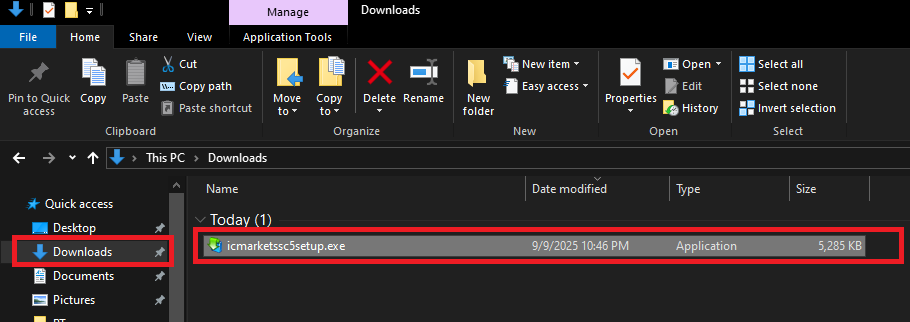
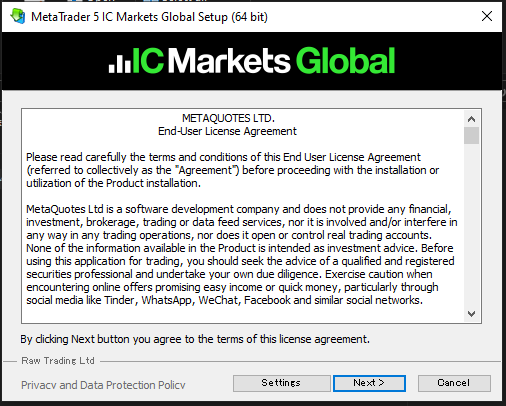
Using your broker’s MT5 build (recommended) usually reduces issues because the server list and symbol settings match your account. Download the installer from your client portal (e.g., BrokerNameSetup5.exe) and run it.
2) Get your account details (login, password, server)
In most cases, your broker sends these by email (some brokers let you set the password yourself). If the server name is wrong, you can’t log in—keep that email somewhere safe.
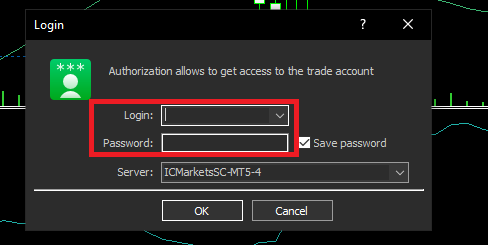
3) Log in to MT5 and confirm the connection
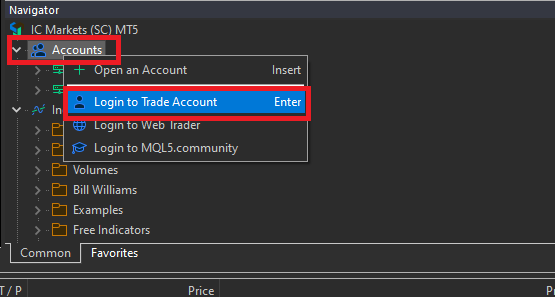
Log in from the MT5 Navigator. You’ll enter the server / login / password.
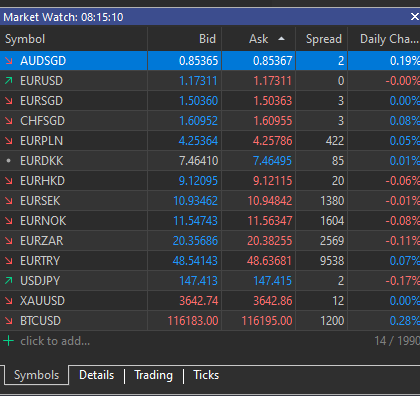
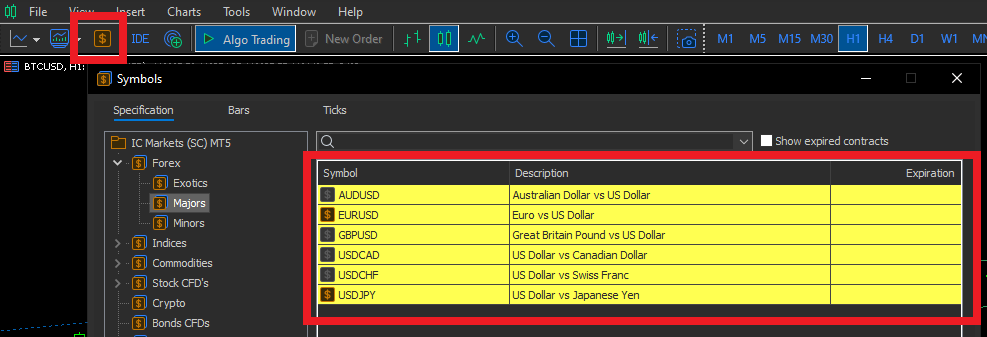
4) Show the trading symbols (watch the suffix)
Confirm that the symbols your EA trades (e.g., XAUUSD, EURUSD) appear in Market Watch. Some brokers add suffixes like .pro or -ecn.
Related: Getting Started with MT5: Download → Install → Login (Windows)
Prepare your EA files (what you need)
Check the files you received and keep only what’s required. A typical package includes:
- Main EA:
.ex5(compiled) /.mq5(source) - Extra files:
.dll/.mqh/ additional.ex5, etc. (depends on the EA) - Settings file (optional):
.set
Tip: If the package includes a .dll, only enable DLL permissions when the EA truly needs it (and only if you trust the source).
How to install an EA on MT5 (Windows)
Step 1: Open the MT5 “Data Folder”
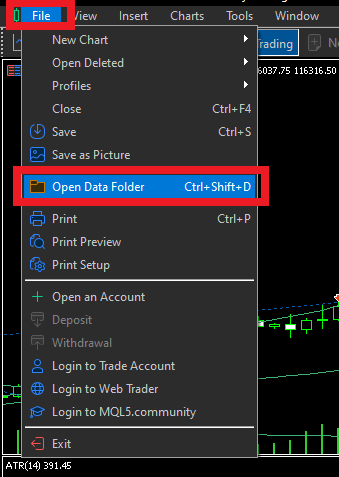
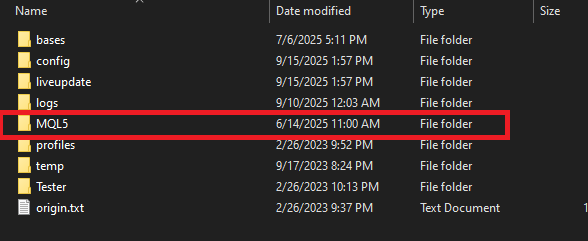
Go to MT5 menu File → Open Data Folder. This is the base folder where MT5 reads EAs (it may be different from the program install folder).
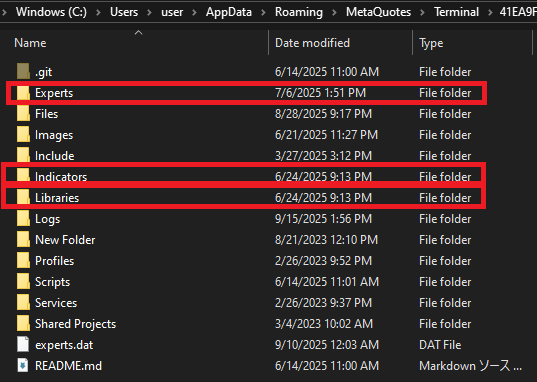
Step 2: Place files into the correct folders
Each file type has a specific location. Use this table as your baseline:
| File type | Location (under the Data Folder) |
|---|---|
Main EA (.ex5 / .mq5) |
MQL5/Experts/ |
| Custom indicators | MQL5/Indicators/ |
| Libraries (DLL, etc.) | MQL5/Libraries/ |
Settings file (optional: .set) |
MQL5/Profiles/Tester/ etc. (follow the vendor’s instructions if provided) |
Step 3: Refresh the Navigator (the #1 fix when it doesn’t show up)
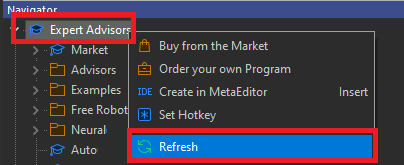
After copying files, refresh MT5 so it picks them up. In the Navigator (Ctrl+N), right-click Expert Advisors → Refresh. If it still doesn’t appear, restart MT5.
Step 4: Attach the EA to a chart
Open a chart for the target symbol and attach the EA from the Navigator by drag & drop (or double-click).
Core MT5 settings (safety switches: AutoTrading / DLL / WebRequest)
Most “EA won’t trade” issues come from these switches. Check them in this order: Global → EA-specific → Platform options.
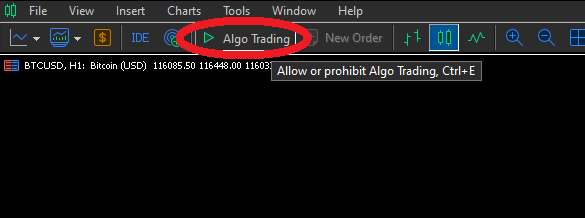
1) Global switch: the toolbar “AutoTrading” button
The AutoTrading button is the master switch: Green = enabled / Red = disabled. If it’s red, the EA won’t place orders.
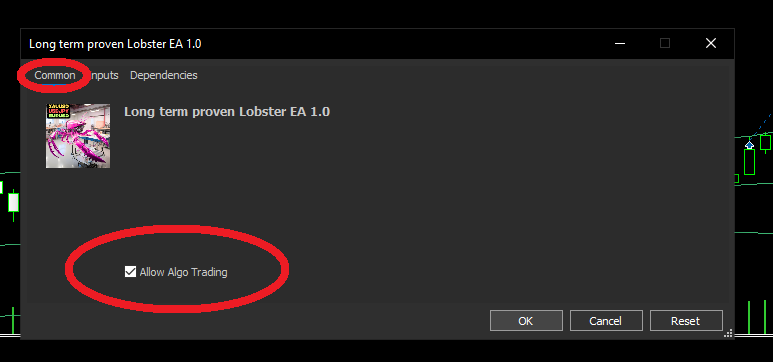
2) EA-specific: Properties → Common
When you attach the EA, the Properties window opens. Tick “Allow algorithmic trading”.
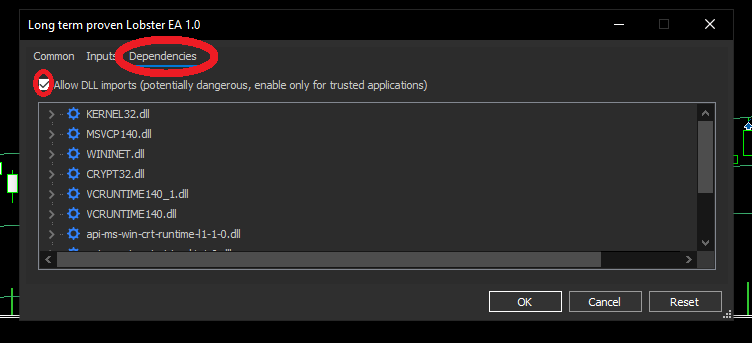
3) Only if required: Allow DLL imports (Dependencies)
Most EAs do not require DLLs. Enable “Allow DLL imports” only when the EA needs it—and only if you trust the vendor/source.
4) Platform options: Tools → Options → Expert Advisors
These are MT5-wide permissions. A simple rule set works well:
- Allow algorithmic trading: usually ON
- Allow DLL imports: ON only if required (otherwise OFF)
- Allow WebRequest: only for EAs that need online license checks, and only add the URLs you were instructed to add (otherwise OFF)
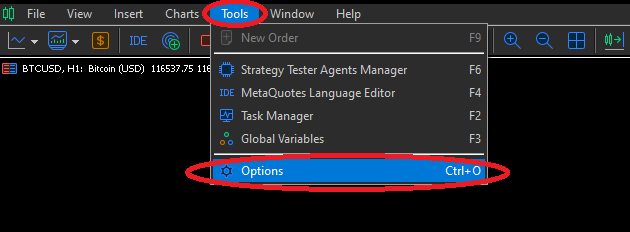
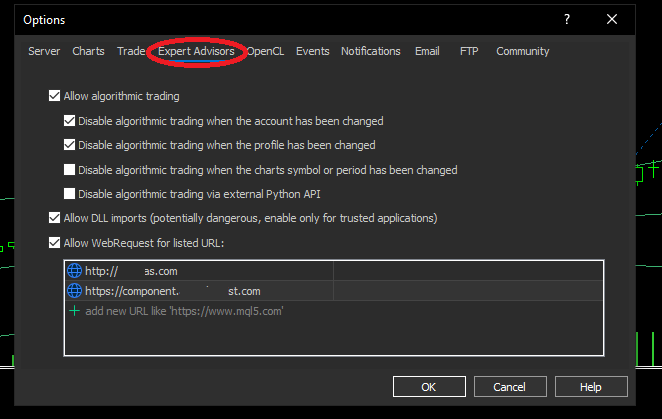
Chart setup (make sure the basics match)
An EA follows strict rules. If your setup doesn’t match what the EA expects, it may behave differently than intended. Focus on the essentials:
Symbol
Pick the exact symbol name, including any suffix (e.g., XAUUSD and XAUUSD.pro are different).
Timeframe
Use the timeframe the EA recommends (e.g., M1 / H1 / D1). Running it on a different timeframe can change entries, exits, and filters.
Account type (Netting vs Hedging)
If the EA requires hedging, you need a Hedging account. On a Netting account, positions for the same symbol get merged/offset.
Price history
MT5 downloads history automatically when you open charts. If the EA needs many past bars, opening the key timeframes once can help MT5 build enough bars before you start.
Input parameters (what to set first)
Don’t start with aggressive settings. A safer approach is: run small → check logs → adjust.
Lot size / risk (top priority)
Start with a very small lot or a low risk %, then adjust after you understand the drawdown from your backtest.
Magic Number (rule for running multiple EAs)
If you run more than one EA in the same MT5, do not reuse the same Magic Number. Duplicates can cause trade management conflicts, unwanted closes, and unexpected re-entries.
Trading hours / Friday close (often based on server time)
Many EAs use the broker’s server time. If this is wrong, you may see missed closes or trades at unexpected hours.
Spread limit / minimum distance (filters)
These settings help avoid entries during huge spreads (news, rollover). If the filter is too strict, the EA may never trade. Start with a value that still triggers in normal market conditions, then fine-tune.
First checks right after installation
- You placed the EA file in
MQL5/Experts/ - You restarted MT5 or refreshed the Navigator (Refresh)
- The toolbar AutoTrading button is green
- In EA Properties (Common), Allow algorithmic trading is enabled
- The symbol (including suffix) and timeframe match what the EA expects
- A backtest (start with “Open prices only”) runs without errors
- If running multiple EAs, Magic Numbers are not duplicated
The following may be required depending on the EA (only if needed):
- You placed custom indicators/libraries in the correct folders
- If the EA needs DLL/WebRequest, you enabled permissions with the minimum required settings
Common errors and quick fixes
| Error message | Likely cause | Fix |
|---|---|---|
| Trade is disabled / algo trading disabled | Global switch or EA-specific switch is OFF | Turn on both: AutoTrading (green) + EA Properties (Allow algorithmic trading) |
| Invalid volume / Volume step is invalid | Lot size doesn’t match account rules | Adjust to the symbol’s min lot, lot step, and max lot |
| Invalid stops / Too close stops | StopLevel / FreezeLevel not respected | Set SL/TP wider than the broker’s minimum distance |
| Symbol not found / Market closed | Symbol name/suffix or trading hours | Enable the symbol in Market Watch, confirm suffix, and check market hours |
| Not enough money | Insufficient margin | Lower lot size or increase free margin |
FAQ
- Q. Can MT5 run on 32-bit?
- A. We recommend the 64-bit version for better compatibility and stability.
- Q. Do I always need to allow DLL imports?
- A. No. Enable it only for EAs that require it, and only if you trust the source.
- Q. What’s the difference between Hedging and Netting accounts?
- A. Hedging allows multiple positions in the same symbol (including opposite positions). Netting merges/offsets positions per symbol. Choose based on the EA’s requirements.
- Q. Where do I add WebRequest URLs?
- A. Go to Tools > Options > Expert Advisors, enable Allow WebRequest, then add the exact URL(s) provided by the EA vendor (leave it off if not needed).
- Q. What happens if Magic Numbers overlap?
- A. Trade management can interfere across EAs, causing unexpected closes or re-entries. Use a unique value for each EA.
- Q. Which backtest model should I use first?
- A. Start with Open prices only to confirm there are no setup errors, then switch to Every tick (real ticks) for a deeper check.
- Q. What’s a good starting value for a spread limit?
- A. Start with a slightly relaxed value that still allows trades in normal conditions, then adjust based on actual execution. If it’s too strict, you’ll miss trades.

 MQL5
MQL5
 Myfxbook
 YouTube
 X
X
 GOGOJUN