

Intro: Before You Run an MT5 EA 24/7 on a Home PC (Most “Stops” Come From Your Setup)
One important note first.
You can run an EA 24/7 on a home laptop or desktop, but a small mistake in power settings, cooling, internet, or updates (restarts) can turn your PC into a “system that stops easily.”
If you’re not confident about stable operation, consider using a VPS from the start. A VPS is built for 24/7 uptime (data center power, network, and cooling).
This article shows practical steps to make your home PC stable first. If you move to a VPS later, the same thinking still applies.
“Stability Checklist” for Running MT5 on a Home PC
- Disable Sleep / Hibernate (turning the screen off is fine)
- Set your laptop to keep running even when you close the lid (make sure air can flow in/out)
- Turn OFF power saving for USB / network (helps prevent short disconnects)
- Manage Windows Update so it can’t restart your PC “on its own” (explained below)
- Use wired LAN instead of Wi-Fi (highest priority if possible)
- Make temperature visible (if CPU stays in the 80°C range, improve cooling)
- Power outage basics (protect your router first, then the PC)
- Auto-start MT5 (make sure MT5 comes back after a restart)
Start With Cooling: Room Temp + PC Temp Targets (Heat = The Fastest Way to Instability)
Even if an EA looks “light,” opening multiple charts can warm up your CPU and SSD. High temperatures often lead to unstable behavior.
Room temperature / humidity targets
- Room temperature: 22–26°C (roughly 18–28°C is acceptable)
- Humidity: 40–60%
In rooms above 30°C, fans may run nonstop and performance can become erratic.
PC temperature targets (check this first)
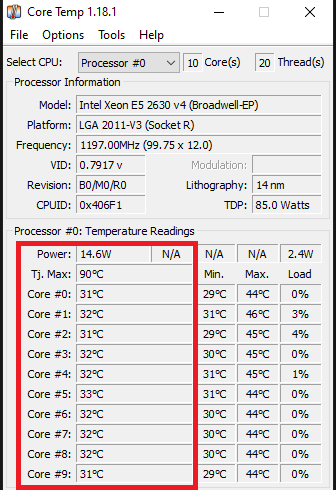
- CPU temperature: aim for under 70–80°C during normal use
- If it stays in the 80°C range, prioritize fixes (better airflow → cooling pad → dust cleaning)
A practical option if your PC still runs hot
If you set the power option “Maximum processor state” to 90–95%, the CPU often runs cooler (usually with only a small real-world performance hit).
How to check CPU temperature (Windows + simple tools)
Windows Task Manager does not show CPU temperature (GPU temperature may appear on some PCs). Use a lightweight temperature monitor (e.g., Core Temp / HWiNFO / HWMonitor), your manufacturer’s utility (Lenovo Vantage, Dell Power Manager, etc.), or check in UEFI/BIOS.
Use Task Manager to Spot “Heavy Load” (Simple Danger-Line Targets)
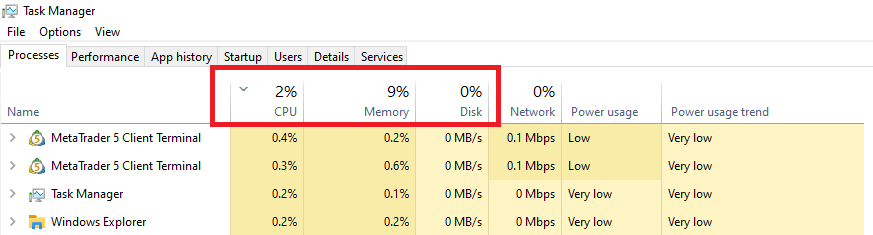
Task Manager helps you catch problems early. Open it with Ctrl + Shift + Esc (or right-click the taskbar → Task Manager).
- In the Processes tab, check CPU / Memory / Disk usage for “MetaTrader 5” or
terminal64.exe - In the Performance tab, watch CPU, available memory, and disk activity—see if anything stays high all the time
- In the Startup tab, disable unnecessary apps to make boot-up more stable after a restart
How to think about “limits” (danger lines)
- CPU: If it stays above 70% for 10+ minutes, you have little headroom. If it sticks at 85–100%, it’s risky (reduce charts or the number of EAs)
- Memory: 80%+ usage or less than 2GB free often triggers heavy paging. If possible, move toward 16GB+. With 8GB, limit how many MT5 instances you run
- Disk (SSD): 80–100% active time for several minutes means the drive is bottlenecking. Keep 15–20% free space on your C: drive
- Network: MT5’s bottom-right ping is ideally under ~100ms. If it’s over 200ms most of the time, orders can be slower
Power + Sleep Settings That Prevent Stops (Power Saving Is the #1 Enemy)
The most common reason EAs stop on a home PC is automatic behavior like Sleep, Hibernate, or aggressive power saving. Keep your AC adapter connected, then apply the settings below in order. Just follow the steps as written.
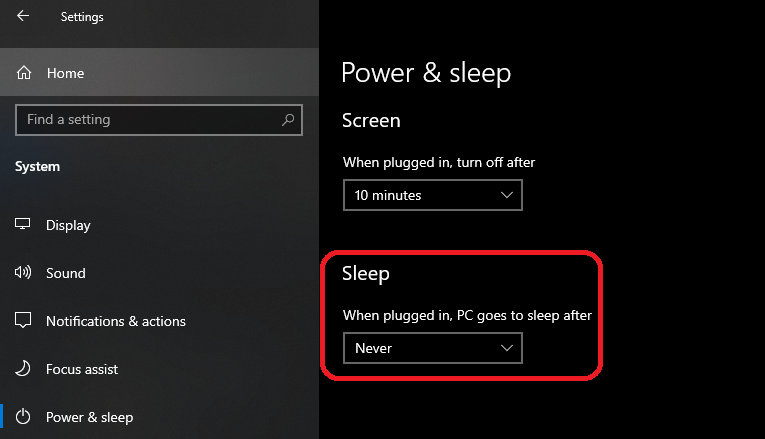
A. Screen off is fine. Sleep must be OFF.
Windows:
Settings → System → Power & battery → “Screen and sleep”
- Screen: optional (turning it off is fine)
- Put the PC to sleep: Never
(Laptop) Keep running even when you close the lid:
Control Panel → Hardware and Sound → Power Options → left menu “Choose what closing the lid does” → set to “Do nothing”
※ At minimum, set “Do nothing” while plugged in.
B. Disable power saving that can cut USB / network
- Turn off USB selective suspend: Control Panel → Power Options → “Change plan settings” → “Change advanced power settings” → USB settings → USB selective suspend setting → Disabled (helps prevent issues with mice and USB dongles)
- Disable network adapter power saving: Device Manager → Network adapters → double-click your adapter → “Power Management” → uncheck “Allow the computer to turn off this device to save power”
C. Reduce CPU heat for stability (only if needed)
If cooling can’t keep up and your CPU stays in the 80°C range, setting Maximum processor state (90–95%) often helps.
Control Panel → Power Options → “Change plan settings” → “Change advanced power settings” → Processor power management → Maximum processor state → 90–95%
Windows Update + Restarts (Auto-Restarts Can Cause the Worst Accidents)
An unexpected restart can be disastrous.
It doesn’t just stop MT5—often MT5 stays closed after the reboot.
If you run without a Stop Loss (SL), or your EA closes trades using Market execution, a sudden stop during a fast market can lead to losses you didn’t plan for.
Basic approach: Don’t chase “zero updates.” Use a simple manual routine.
- Pick a fixed day for updates (for example, once a week)
- Before updating, confirm your trade protection (Stop Loss (SL) / Take Profit (TP))
- Update → restart → confirm MT5 comes back automatically
Windows 11/10: settings you can use even on Home
- Set longer Active hours: Settings → Windows Update → Advanced options (or Active hours) → adjust Active hours
- Enable restart notifications: Settings → Windows Update → Advanced options → Notifications (so you get restart alerts)
- Use Pause updates when needed: Settings → Windows Update → Pause updates (a few days to a few weeks, depending on your schedule)
After updates: make MT5 auto-start (this matters most)
You can’t avoid updates and restarts forever. What matters is MT5 returns automatically after a reboot.
- Startup (simple): check Task Manager → Startup, then place an MT5 shortcut in the Windows Startup folder
- Task Scheduler (more reliable): start on logon / add delay (e.g., 30 seconds) / retry on failure (e.g., 3 times, 1 minute apart)
Power Outages: Risks and Simple Protection (A Key Point for Home PC Operation)
The biggest threat at home is a power outage (or a short voltage drop). It often triggers two problems at the same time:
- Your PC stops → MT5 stops (your EA can’t run)
- Your internet drops (router / internet equipment loses power) → even if the EA is “running,” it may fail to send orders / fail to fill
Even if power returns quickly, your EA won’t resume if MT5 doesn’t auto-start. That’s the common home-PC trap.
Know this: orders that still “work” vs orders that don’t
How bad a power outage becomes depends on how your EA manages trades.
- Usually safer: you set normal SL/TP (Stop Loss / Take Profit)
→ In many cases, the broker manages these server-side, so they can still work even if your PC is off - Often riskier: no SL, and the EA closes later using Market execution
→ If MT5 stops, the EA can’t respond during sudden price moves - Important note: some EAs use “hidden” protection (virtual SL/TP)
→ If so, protection may not work when the PC is down
Related: MT5 EA Order Types: Reduce Delay/Stop Risk with Server-Side Orders (SL/TP & Pending Orders)
Minimum protection (high impact, low effort)
- 1) Use SL/TP as the default if your EA supports it
- 2) Make MT5 auto-start after a restart (Windows boot → MT5 auto-start)
- 3) If possible, give your router short backup power (a small UPS, etc.)
Laptop (minimum is enough)
- The battery acts as a safety net: short outages may not stop the laptop
- But if the internet drops, it still hurts: if the router loses power, you can lose connectivity
- Auto-recovery: after reboot/login, make sure MT5 auto-starts
Desktop PC (minimum is enough)
- Outage usually means an instant stop: consider a UPS if you can (even short backup helps)
- Auto-recovery matters: some desktops do not power on automatically after power returns, so at least set MT5 to auto-start once the PC is on
Bottom line: Don’t overthink it. If you cover “use SL/TP” + “auto-start MT5 after reboot”, your accident rate drops significantly.
Keep Your Connection Stable (If the Internet Drops, Your EA Can’t Place Orders)
A surprisingly common issue at home is a brief internet drop.
If the connection breaks, MT5 and your EA may still be running, but orders may not go through / fills may fail. Keep this section simple and focus on the basics.
Minimum steps (often enough)
- Use wired LAN if possible (LAN cable)
→ It’s usually more stable than Wi-Fi and latency tends to be more consistent. - If you use Wi-Fi, avoid using a repeater/extender
→ Extenders help coverage, but weak signals often increase disconnects and lag. - Restart your router once a month (weekly is fine if you have issues)
→ This alone can fix “random instability.”
Only adjust these if you still get disconnects (skip if it’s stable)
- If Wi-Fi drops due to auto switching (2.4GHz/5GHz), try locking to one band
- If router ECO/power saving or auto-optimization causes drops, turn it off and test
Start with “use wired LAN”. If you can’t, “avoid extenders + reboot the router regularly” can still help a lot.
Use Screen Lock (MT5 Keeps Running While Locked)
When you step away, press Win + L to lock your screen. It reduces the risk of information leakage if your PC is lost or stolen.
MT5 keeps running in the background while the screen is locked (the key is that this is not Sleep).
If you often forget: strengthen auto-lock
- Settings → Accounts → Sign-in options → enable “Require sign-in”
- In screen saver settings, enable “On resume, display logon screen”
Stabilize MT5 Itself (Keep It Light, Avoid Conflicts)
Ways to reduce MT5 load
- Reduce the number of bars in chart history
- Turn off unnecessary services/features
- Hide unused symbols (currency pairs)
- Keep the number of open charts to a minimum
- Remove unnecessary indicators/EAs
- Turn off notifications (Push Notifications)
- Disable news feed (Server / News)
- Run backtests/optimizations at a different time (don’t do it while live trading)
Related: MT5 Settings to Reduce CPU/Memory Usage
Avoid security software “slowdowns”
Real-time antivirus scanning can slow MT5 down. On a trading PC, adding the MT5 folder to exclusions often helps (reduces false positives and scanning delays).
Summary
- Fix heat and Sleep: control room temperature/cooling, and disable Sleep completely
- Stabilize your internet: use wired LAN if possible; restart your router regularly
- Plan for restarts: handle updates manually, and make MT5 auto-start after reboot
- Reduce accidents even if MT5 stops: use SL/TP (Stop Loss / Take Profit) if possible, so losses stay limited even when your PC/MT5 is down
- Keep outage protection simple: laptops rely on battery; desktops should use a UPS if possible
 MQL5
MQL5
 Myfxbook
 YouTube
 X
X
 GOGOJUN