

What You’ll Learn (Run Multiple MT5 Terminals, Accounts, and EAs Separately)
This guide explains how to run multiple instances of MT5 from the same broker and assign different Expert Advisors (EAs) to different accounts on a single PC or VPS.
The key is to move the MT5 installation to a safe location (outside Program Files), then duplicate the entire folder. This prevents User Account Control (UAC) permission issues and keeps each setup fully independent.
If you haven’t installed MT5 yet, see this step-by-step guide first:How to Download & Install MT5 (MetaTrader 5) on Windows + Login Setup
Before You Start (Important Setup Principles)
- Operating System: Windows (PC or VPS)
- Main Rule: Move MT5 out of the Program Files folder before duplicating it
- What “Folder Separation” Means: Each MT5 instance creates its own unique data folder (a long alphanumeric hash). If those hashes are different, your settings, EAs, indicators, and logs are fully separated.
Why Move MT5 Outside Program Files? (Avoid UAC Issues)
Windows User Account Control (UAC) restricts write access to protected locations such as the Program Files directory. Since MT5 regularly writes logs, saves settings, and updates files, permission conflicts may occur.
To avoid unexpected errors, move MT5 to a simple location such as C:\ before duplicating it.
Related article:
MT5 EA Permission Errors (UAC) Fix: Run as Administrator & Install Outside Program Files
Step-by-Step: Safely Run Multiple MT5 Terminals (Folder Duplication Method)
This example uses HF Markets’ “HFM MetaTrader 5,” but the process is identical for other brokers.
1) Move the Original MT5 Folder to C:\ (Most Important Step)
By default, MT5 is installed here:
C:\Program Files\HFM MetaTrader 5
Cut this folder and paste it directly under C:\.
- Example:
C:\HFM MetaTrader 5 - Do not duplicate it inside Program Files — this often causes permission conflicts.
2) Duplicate the Folder and Rename It
Copy and paste:
C:\HFM MetaTrader 5
Then rename the duplicates clearly:
C:\HFM MetaTrader 5_No1C:\HFM MetaTrader 5_No2
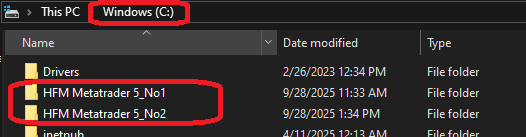
3) Create Shortcuts for Each Terminal
Inside each folder, right-click terminal64.exe → select Create shortcut.
- Changing the icon color for each shortcut reduces mistakes during live trading.
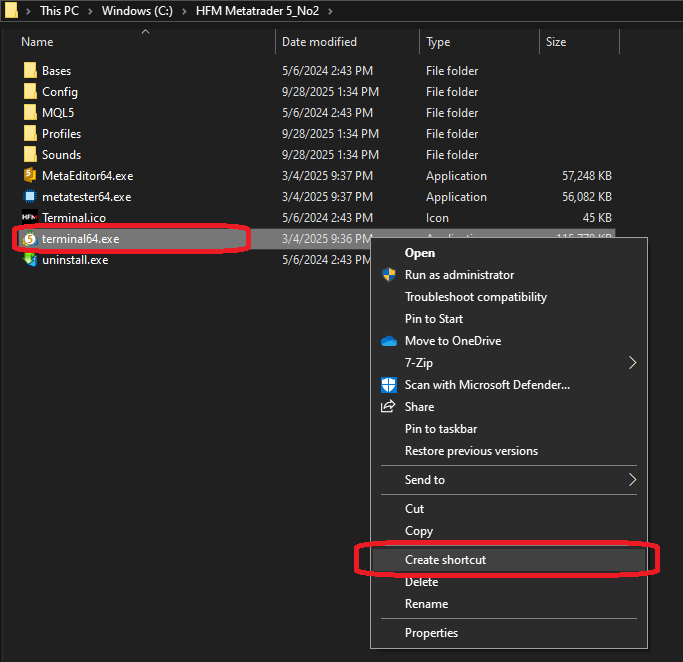
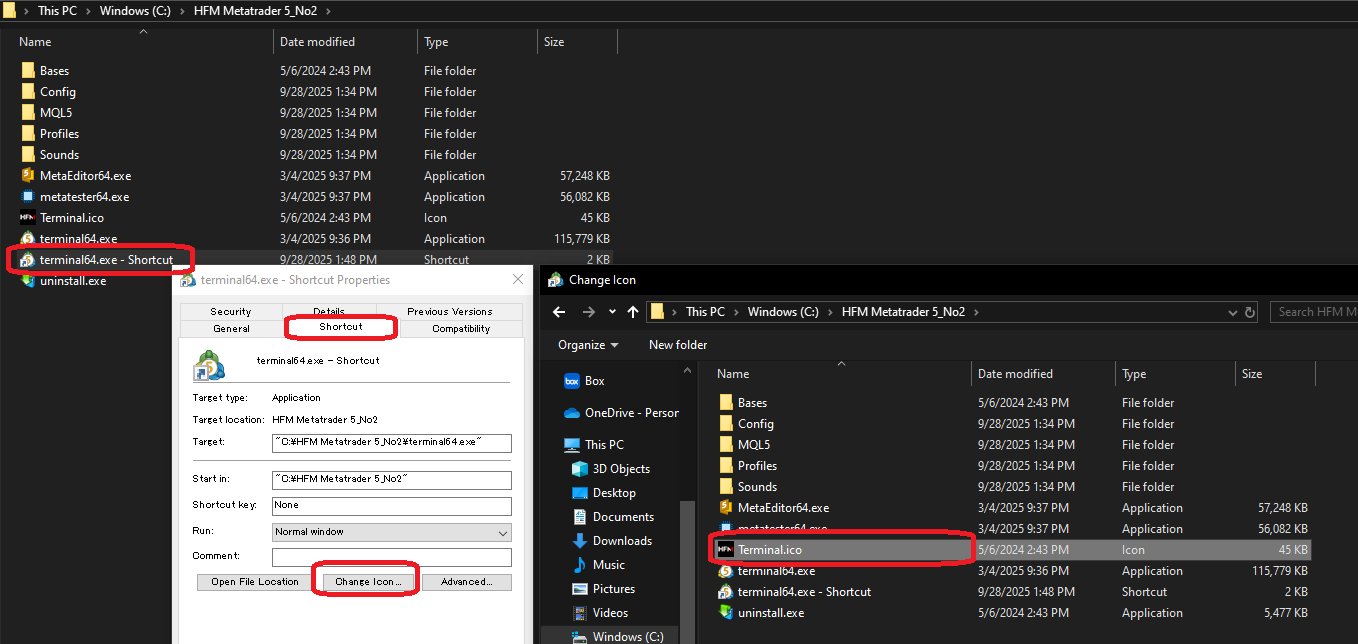
4) Rename Shortcuts and Test Launch
Move the shortcuts to your desktop and rename them clearly:
HFM_1HFM_2
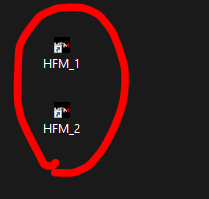
Double-click each shortcut to confirm they launch independently.
Verify Separation: Check the Data Folder Hash
The most important step is confirming that each MT5 instance uses a different data folder.
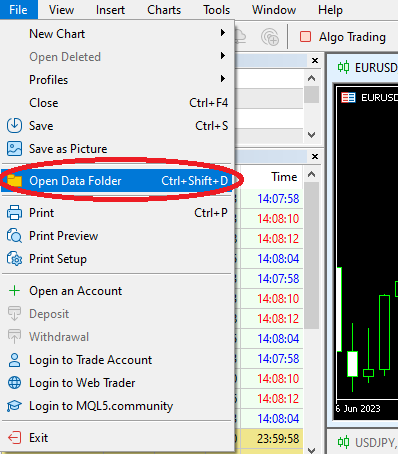
- In each MT5, click File → Open Data Folder.
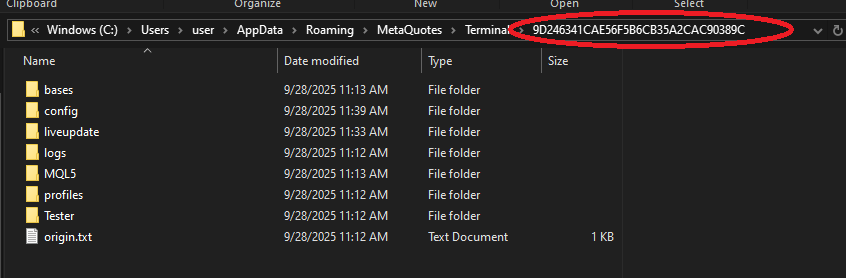
- Look at the folder path — you will see a long alphanumeric hash.
- If the hash differs between No1 and No2, your EAs, settings, and logs are fully separated.
If the Server Doesn’t Appear in the Login Dropdown
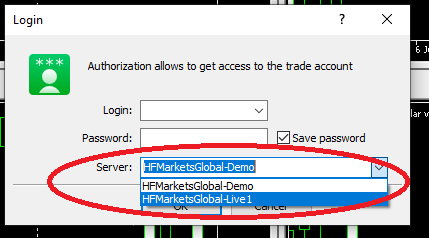
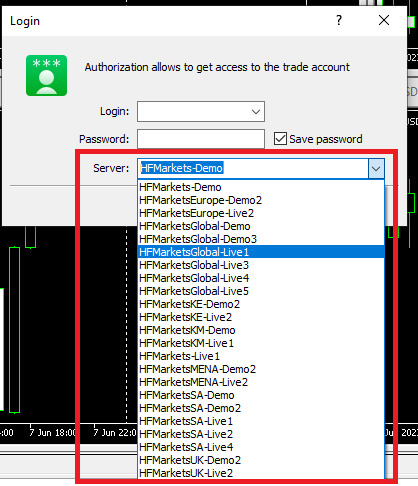
If your broker’s server is missing from the login screen dropdown, refresh the server list using this method:
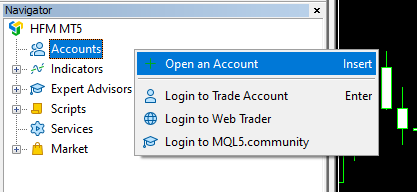
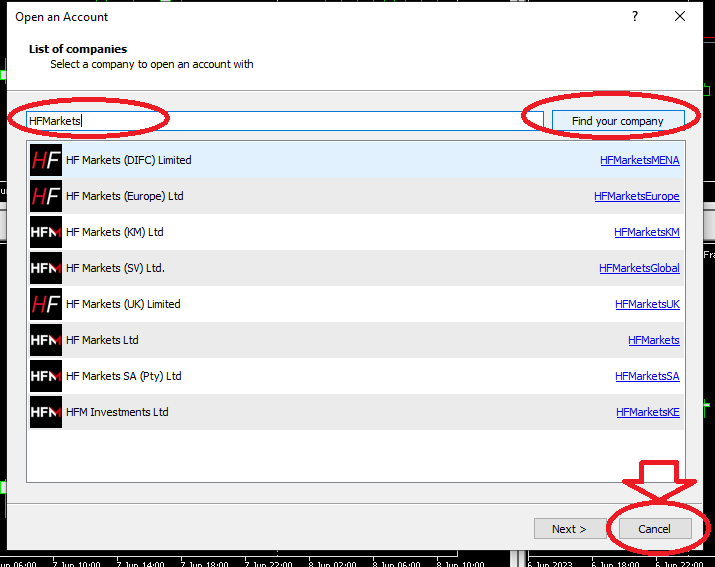
- In Navigator, right-click Accounts → select Open an Account.
- Search for your broker (e.g., HFMarkets).
- Do not click Next — cancel instead.
- Reopen the login window. The server list may now appear.
Alternative Method: Install MT5 to Separate Folders
You can also run the MT5 installer multiple times and assign a different installation folder each time.
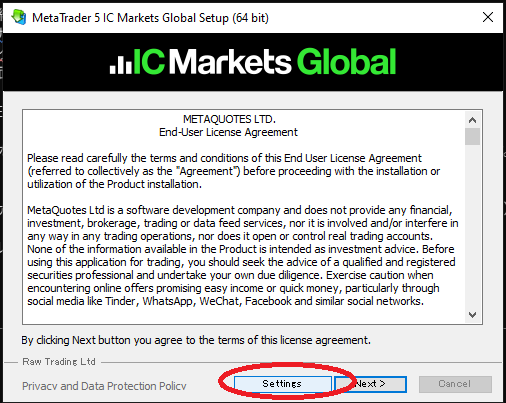
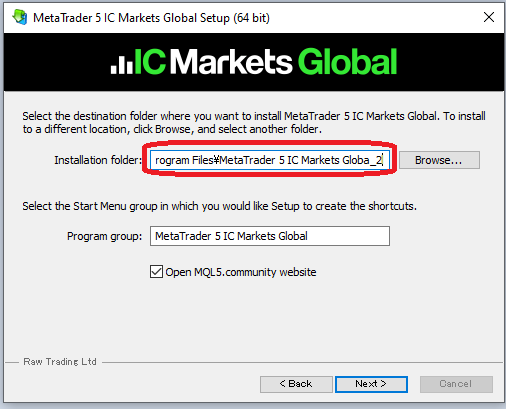
However, if you install inside Program Files, UAC restrictions may still apply. For stability, moving the folder to C:\ and duplicating it is usually more reliable.
Running Multiple MT5 Terminals: Performance Risks and Stability Tips
When you run multiple MT5 terminals on one PC or VPS, resource usage increases proportionally. CPU, memory, and disk I/O load all rise as you add more instances.
If system load remains high, you may experience:
- Platform freezes
- Charts stopping updates
- EA execution delays
- Login disconnections
In multi-account EA trading, even one stopped terminal can create serious risk exposure. Stability matters more than raw hardware power.
Why Performance Drops with Multiple Terminals
- Charts: More charts and timeframes increase CPU/GPU usage.
- EAs and indicators: Tick-by-tick calculations consume CPU and memory.
- Log files: Excess logging increases disk usage, especially on VPS.
- Simultaneous updates: Multiple terminals reconnecting or updating at once can spike resource usage.
Warning Signs of Instability
- Slow startup or login delays
- Lagging chart updates
- Delayed mouse response
- High CPU or memory usage in Task Manager
Keep It Lightweight for Stable Operation
For stable multi-terminal operation, focus on minimal configuration rather than visual customization.
Related article:
EA VPS Setup Guide: Prevent MT5 Lag, Freezes, and Unexpected Downtime
Frequently Asked Questions
Q. My settings or EAs are mixed between terminals. Why?
This usually means both terminals are using the same data folder. Go to File → Open Data Folder and confirm that each instance has a different hash folder.
Q. MT5 becomes slow when running multiple instances.
Reduce the number of charts, limit bar history, disable news and alerts, and manage log files to lower system load.
Q. My broker’s server doesn’t appear during login.
Follow the steps in “If the Server Doesn’t Appear in the Login Dropdown” to refresh the server list.
 MQL5
MQL5
 Myfxbook
 YouTube
 X
X
 GOGOJUN