

Introduction: Stop MT5 Log Bloat—Manually
MT5 (MetaTrader 5) creates log files every day as you use it—platform logs (Journal), EA/indicator logs (Experts), and Strategy Tester logs keep growing over time.
If your EA prints a lot of messages with Print(), runs 24/7, or you run backtests often, those logs can grow much faster than you expect.
This article shows you where MT5 stores each type of log, then walks you through a simple, reliable routine to delete old logs on a schedule (manual log rotation)—without getting lost.
Related: What Is a Forex EA (MT4/MT5)? An Automated Trading Guide
Bottom Line: 3 Things to Know
- MT5 log files are created automatically by date (example:
YYYYMMDD.log). - Main locations are
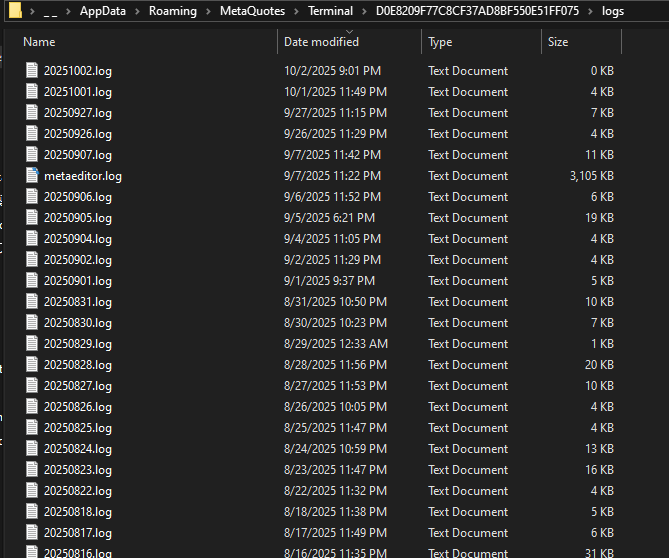
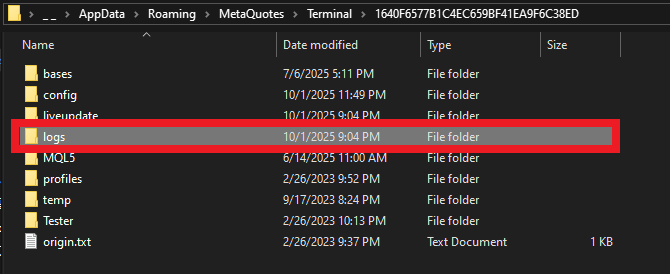
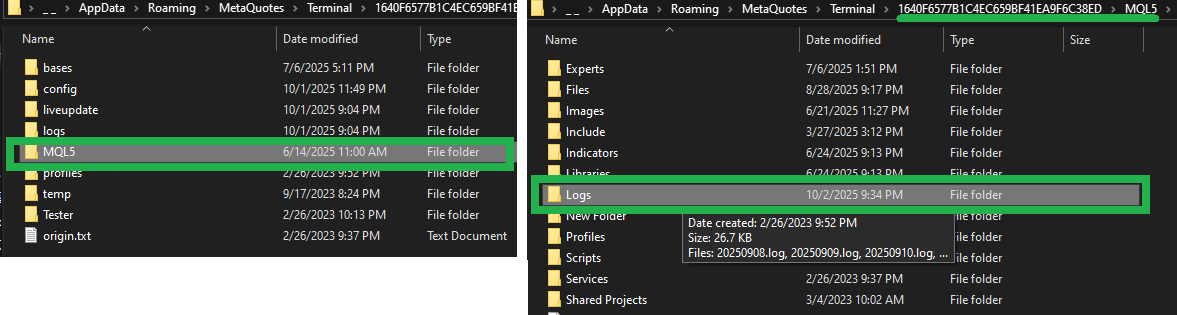
Logs(platform),MQL5\Logs(EAs/indicators), andTester\logs(Strategy Tester). - The “Clear” button in the Journal only clears what you see on screen. To free disk space, you must delete the .log files in the folder.
Why Logs Grow—and Why It Matters
- The more debug output (
Print()) and errors your EA generates, the faster logs grow. - 24/7 operation and repeated testing can stack up logs and eat disk space.
- When free space gets low, you may see slow startup, sluggish performance, failed updates/saves, or even crashes (VPS environments tend to show issues sooner).
Related: EA VPS Setup Guide: Prevent MT5 Lag, Freezes, and Unexpected Downtime
Fastest Way to Clean Up Logs
Tip: Don’t delete logs from the MT5 screen—delete the actual files in the log folders.
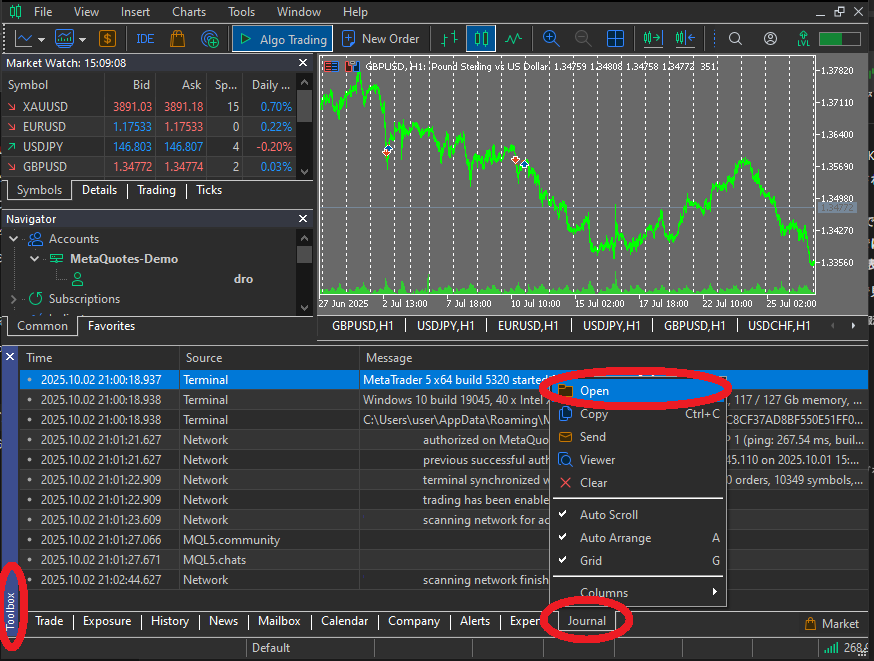
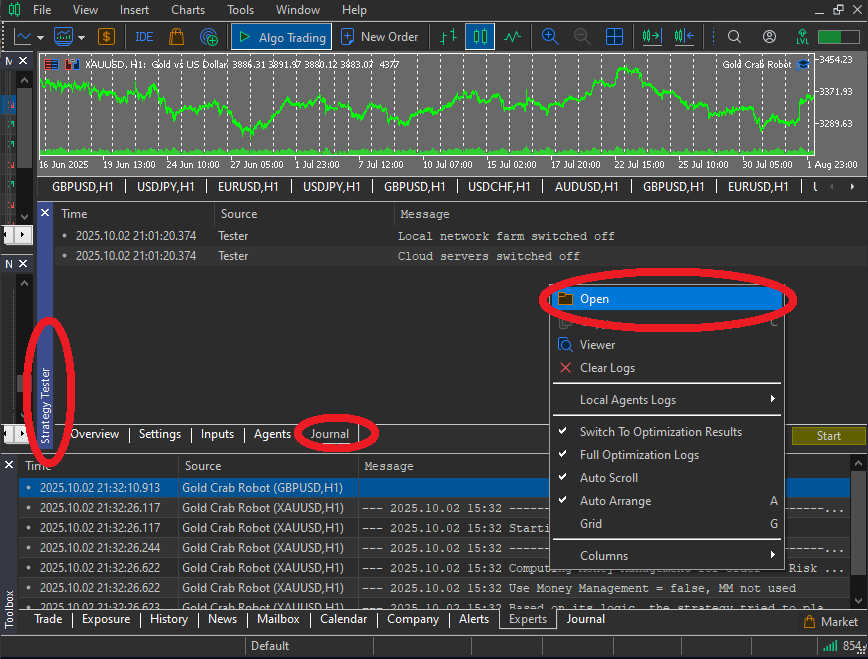
If you’re unsure where to go, use right-click → Open inside each tab. That’s the quickest path.
Before You Delete: Minimum Safety Rules
- If possible, close MT5 first (today’s log may be locked while MT5 is running).
- In general, delete only .log files. Don’t touch folders you don’t fully understand (like
Bases,History,Profiles). - Keeping “today + a few days” is a smart default, so you can trace issues if something goes wrong.
1) Delete Journal Logs (Platform Logs)
- Open the Toolbox at the bottom of MT5, then go to the Journal tab.
- Right-click inside the log area → click Open (this opens the
Logsfolder). - Select older
.logfiles and delete what you don’t need.
2) Delete Experts Logs (EA/Indicator Logs)
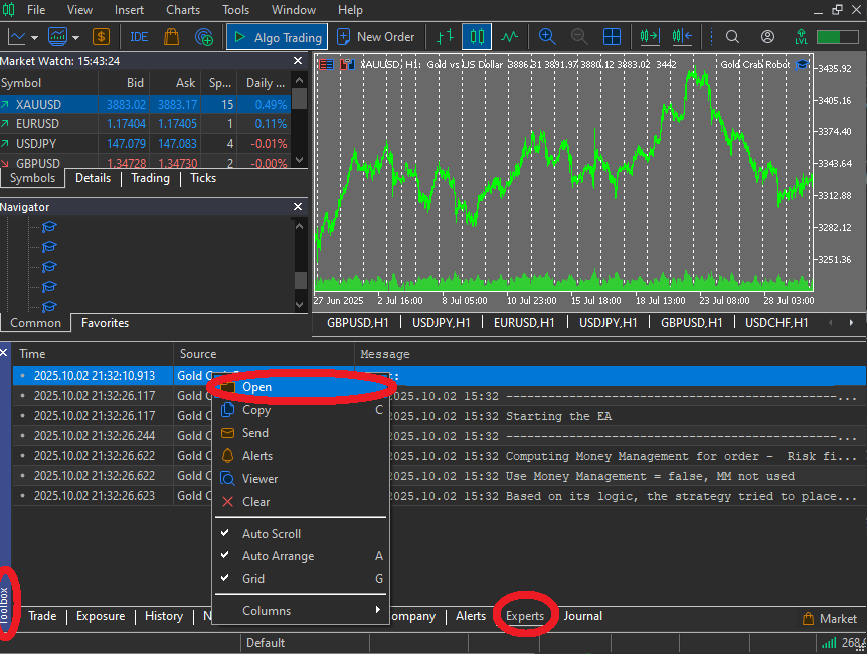
- In the Toolbox, open the Experts tab.
- Right-click inside the log area → click Open (this usually opens
MQL5\Logs). - Delete older
.logfiles based on the date.
3) Delete Strategy Tester Logs (Tester Logs)
If you run backtests often, logs will keep piling up in Tester\logs. This folder tends to grow fastest on a research PC or a testing VPS.
If your live-trading VPS never runs backtests, this is lower priority—but if old logs are already there, it’s safe to clean them up.
How Many Days Should You Keep?
Pick a retention period based on the balance between how long you need logs for troubleshooting and how much disk space you have.
- Live trading (including VPS): keep 14 days, delete anything older
- Development/testing (lots of debug output): keep 7 days, delete anything older
- Heavy backtesting: clean
Tester\logson your test cycle (weekly/biweekly, etc.)
Note: This article focuses on manual cleanup. Automation (batch/scripts) will be covered separately.
How to Open the Log Folders (When You’re Not Sure)
Using Right-click → Open in each tab is the fastest option, but it also helps to know how to reach everything from the main data folder.
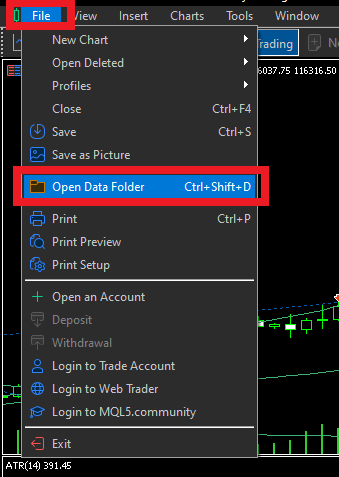
From the top menu, go to File → Open Data Folder, then navigate to the folder you need.
Common Misunderstandings
- “Clear in Journal reduces disk usage”: It doesn’t. Clear only removes what you see in MT5. The files still remain in the folder.
- “Reducing Max. bars in chart reduces logs”: No. That setting affects chart display and load, not log file size.
- “I don’t know where logs are stored”: Use Right-click → Open inside each tab first. It takes you directly to the right folder.
Safe Deletion Rules (What’s OK vs. Not OK)
- Safe to delete: .log files inside
Logs,MQL5\Logs, and (if needed)Tester\logs - Do not touch unless you know exactly why:
Bases,History,Profiles, and other folders used for data or settings
Maintenance Checklist
- Pick a routine (weekly or monthly) and stick to it.
- Journal → Open → delete older
.logfiles inLogs. - Experts → Open → delete older
.logfiles inMQL5\Logs. - If you backtest often, also clean up
Tester\logs. - Delete .log files only (don’t delete unknown folders).
Summary
- MT5 logs are split daily and saved as
YYYYMMDD.log. - Main locations:
Logs,MQL5\Logs, and (if needed)Tester\logs. - To free disk space, delete old
.logfiles in the folders. “Clear” is not a real deletion.
FAQ
- Q. Is “Clear” in the Journal tab enough?
- A. No. Clear only removes the on-screen view. To reduce disk usage, delete old
.logfiles in the folder. - Q. Which files are safe to delete?
- A. In general, only
.logfiles inLogs,MQL5\Logs, and (if needed)Tester\logs. Do not deleteBases,History,Profiles, and other non-log folders. - Q. Will deleting logs affect EA behavior or performance results?
- A. No. You’re only deleting past output records. EA logic and trading results themselves don’t change.
- Q. How long should I keep logs?
- A. It depends, but a practical rule is: keep 14 days for live trading, 7 days for development/testing, then delete anything older than your troubleshooting window.
- Q. Should I delete Tester logs on a VPS that doesn’t run backtests?
- A. It’s not required. But if old backtest logs are already there, deleting older files in
Tester\logsis safe. - Q. Does reducing “Max. bars in chart” reduce logs?
- A. No. That setting changes chart display/load only. It doesn’t reduce log file size.
 MQL5
MQL5
 Myfxbook
 YouTube
 X
X
 GOGOJUN