

Bottom line: The fastest fix is “Run as Administrator” → “Move MT5 outside protected folders”
Most permission errors you see when running an EA (Expert Advisor) on MT5 (MetaTrader 5) come down to two things:
how MT5 is launched and where it’s installed.
- Start here: Run MT5 as Administrator (and set it to always run that way if needed)
- Best long-term fix: Avoid
C:\Program Files. Reinstall MT5 to a non-protected path such asC:\MT5 - Common trap: Check whether files are being redirected to VirtualStore (
%LocalAppData%\VirtualStore) - Last resort: Lower UAC notifications (recommended only for a dedicated EA PC/VPS)
What is a UAC permission error? (A common MT5 problem)
When you run an EA on MT5, Windows UAC (User Account Control) can block file access and trigger errors like
“no permission” or “cannot create file”.
UAC is a Windows security feature that restricts writes and system changes in protected areas.
This happens most often when MT5 is installed under protected folders such as
C:\Program Files or C:\Program Files (x86).
At the moment your EA tries to save logs, write settings files, or export reports,
Windows may block the action.
To check where MT5 is installed, right-click your desktop shortcut and choose
“Open file location”.
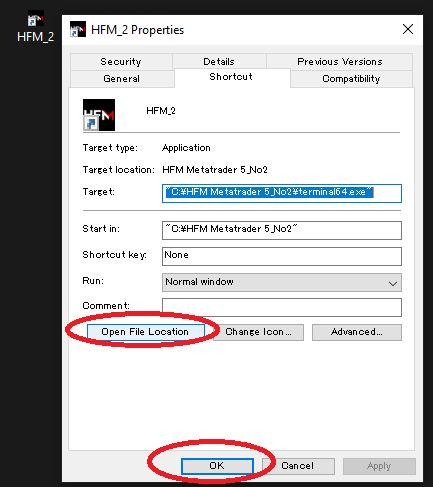
Typical symptoms (error message examples)
cannot open file ... (access denied)failed to save filecannot create directory- “Access to the file was denied”
These errors occur when MT5 or your EA does not have write permission for the files it needs.
They often show up when saving backtest results, reading/writing indicator inputs/outputs, writing logs, or generating reports.
Why UAC affects MT5 (the key reason)
To protect the system, Windows restricts write access to certain folders (for example, anything under Program Files)
when you run apps with normal user permissions.
If MT5 is installed there, Windows can deny your EA’s attempts to create or update files
(such as logs, settings, or I/O under MQL5\Files), which leads to those errors.
In some environments, Windows also redirects writes to VirtualStore (%LocalAppData%\VirtualStore).
That can make it look like “settings didn’t save” or “the file is missing” because the file ended up in a different location than you expect.
Workarounds (recommended order)
1) Run MT5 as Administrator (try this first)
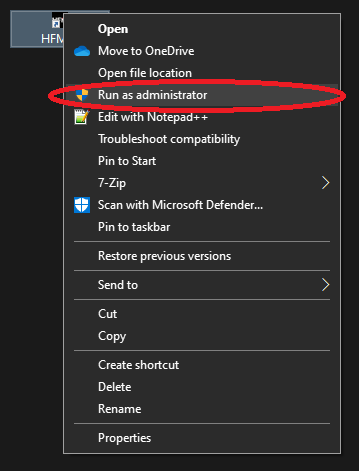
This is the quickest fix. Right-click the MT5 shortcut and select “Run as administrator”.
That gives MT5 and your EA the permissions needed to create and save files.
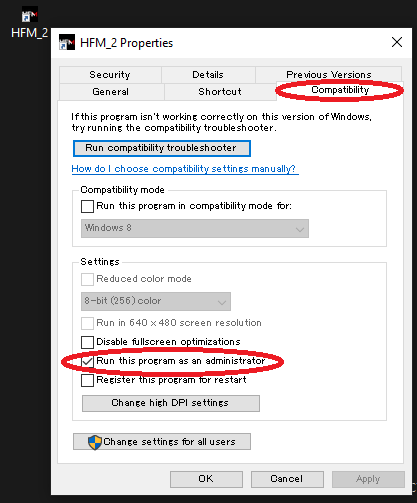
Make it permanent: always launch MT5 as Administrator
- Right-click the MT5 shortcut → Properties
- Open the Compatibility tab → check Run this program as an administrator
- Click OK to save
2) Reinstall MT5 to a non-protected path (best long-term fix)

Even if “Run as administrator” fixes it for now, small permission issues can come back over time.
If you want to avoid this completely, reinstall MT5 to a folder outside Program Files,
such as a custom folder on your drive. This makes log files, settings, and report exports much smoother.
- Example:
C:\MT5 - Example:
D:\Trading\MetaTrader5
Migration tip: copy your Data Folder (MQL5) to restore quickly
After reinstalling, open MT5 and go to File > Open Data Folder.
If needed, copy your old MQL5 folder (Experts / Indicators / Scripts / Files, etc.) into the new environment to restore your setup.
Related:
How to Download & Install MT5 (MetaTrader 5) on Windows + Login Setup
How to Run Multiple MT5 Terminals on One PC/VPS (Same Broker, Separate Accounts & EAs)
3) Check whether Windows is redirecting files to VirtualStore
If “saved settings don’t apply” or “you can’t find the logs/files,” Windows may be redirecting writes to
VirtualStore (%LocalAppData%\VirtualStore).
- Paste
%LocalAppData%\VirtualStoreinto Windows Explorer and check the contents - Look for an MT5-related folder and confirm whether logs/settings are split across locations
For the cleanest setup, standardize on “Install MT5 outside protected folders” + “Always run as Administrator”.
That removes most of the confusion and prevents repeat issues.
4) Adjust UAC notification level (last resort for dedicated setups)
You can lower UAC notifications from Windows settings, but this reduces security.
Consider it only for a dedicated EA PC or EA-only VPS (not a general-purpose daily machine).
- Search Windows for “UAC” → open Change User Account Control settings
- Move the slider down to reduce notifications → restart if required
Notes for VPS users (setup matters)
UAC is enabled on VPS environments too. With default settings, you can hit errors when exporting reports or writing logs.
Lock in always run as Administrator, and if possible, install MT5 to a non-protected path from day one to avoid trouble.
Checklist (before setup and when troubleshooting)
- Is MT5 running as Administrator? (also check the shortcut’s Compatibility settings)
- Is MT5 installed outside protected folders? (avoid
Program Files) - Are logs/settings/reports saved where you expect? (check VirtualStore too)
- Are you using the same policy (permissions + install path) on both VPS and your home PC?
Summary
Most MT5 permission errors caused by UAC are fixed by correcting where MT5 is installed and how it’s launched.
Start with Run as administrator (and make it permanent if needed), then move to a non-protected install path for a clean, reliable setup.
FAQ
- Q. Do I need to click “Run as administrator” every time?
- A. No. Use the shortcut’s Compatibility settings to make MT5 always run as Administrator.
- Q. Can I run MT5 under
Program Files? - A. You can, but it’s more likely to trigger UAC permission issues. Reinstalling to a non-protected path (for example,
C:\MT5) is recommended. - Q. Is it safe to lower UAC settings?
- A. It increases security risk. Consider it only on a dedicated EA PC/VPS where you can limit what the machine is used for.
- Q. I can’t find where the files are saved.
- A. Windows may be redirecting writes to VirtualStore (
%LocalAppData%\VirtualStore). Check both the install path and the actual output location. - Q. Do I need the same fixes on a VPS?
- A. Yes. UAC is enabled on VPS environments too. Use the same approach: run as Administrator and install MT5 outside protected folders.
 MQL5
MQL5
 Myfxbook
 YouTube
 X
X
 GOGOJUN