

Introduction: If Your VPS Stops, Your EA Stops (Why Monitoring Matters)
If your VPS goes down, MT5 and your EA stop with it.
This is especially risky for market-order-heavy EAs. If the VPS drops, orders and exits may not be sent, which can lead to unexpected losses during fast market moves.
This article explains a practical, no-code way to monitor your VPS setup.
- Use UptimeRobot to check whether your VPS is down (the free plan is enough to start).
- Also prepare for the common case where the VPS is online but MT5 or the EA is not running properly.
- The key is to adjust monitoring sensitivity based on your EA type: non-scalping vs scalping, and with vs without stop loss on the broker server.
Bottom line: Decide your monitoring level based on “Scalping?” and “Is SL placed on the broker server?”
How aggressively you should monitor depends on your EA style and order setup. If you overcomplicate monitoring, you’ll spend more time and money—and it often becomes hard to maintain.
Related article:
Scalping EAs: Why They Often Fail on Live Accounts (Costs, Slippage, Execution)
MT5 EA Safety: Order Types, Server-Side SL/TP, Pending Orders, and Latency Risk
Scalping (seconds to minutes) × No stop loss (or stop loss depends on your terminal)
- If MT5/EA stops and the market spikes, the risk of unexpected damage becomes much higher.
- Use high-sensitivity monitoring: don’t just watch VPS uptime—add a signal that tells you MT5/EA is actually running.
- A practical no-code setup is UptimeRobot (shorter intervals if possible) + MT5 notifications.
- For better reliability, use a ready-made indicator/EA that can send scheduled alerts so you receive a message at regular intervals.
Scalping (seconds to minutes) × Stop loss enabled (server-side SL/TP)
- Scalping depends on speed, so downtime tends to hurt more.
- However, if SL/TP is placed on the broker’s server, it’s easier to avoid the worst-case scenario (being completely unprotected).
- Use medium to high monitoring sensitivity: combine Ping monitoring with MT5 alerts (trade alerts / scheduled alerts).
Non-scalping (hours to days) × No stop loss (or stop loss depends on your terminal)
- Even with low trade frequency, an EA that can’t place SL still carries set-and-forget risk.
- Use medium monitoring sensitivity: Ping monitoring plus a signal that MT5 is running is a good balance.
- No-code option: enable MT5 trade notifications, and add a scheduled-alert indicator/EA if needed.
Non-scalping (hours to days) × Stop loss enabled (server-side SL/TP)
- Risk is relatively lower. In many cases, pending orders and stop loss are stored and executed on the broker’s server.
- One important exception: Trailing Stop often depends on the terminal (MT5) to trigger and adjust.
- Don’t make monitoring overly sensitive—simple settings are usually easier to maintain.
- UptimeRobot: Ping (5 min) + optional RDP port monitoring is often enough.
What is UptimeRobot? A monitoring service that checks VPS uptime automatically
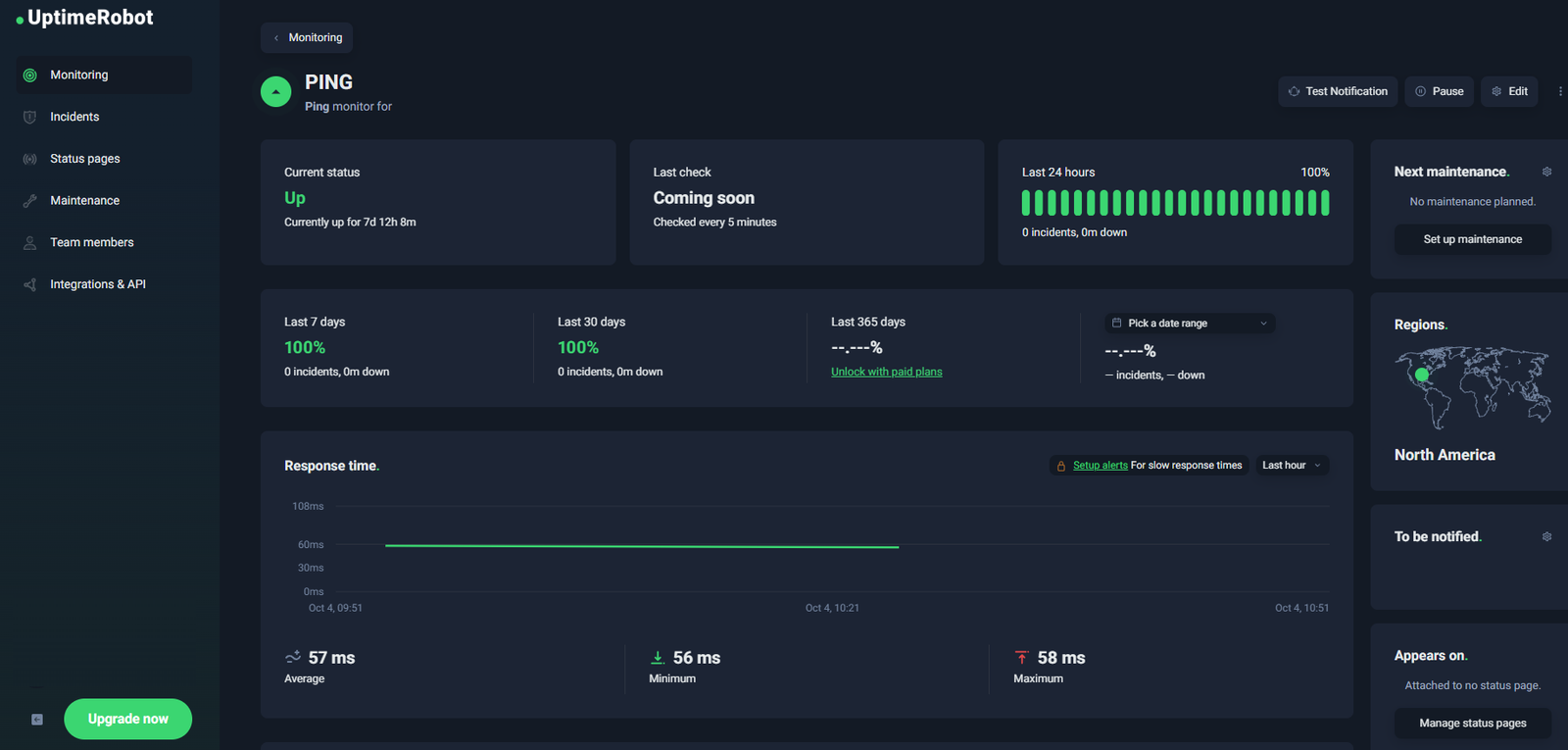
UptimeRobot automatically checks whether servers and web services are up, and alerts you when they go down. It has a free plan (5-minute checks, up to 50 monitors), so you can start with zero cost.
For MT5/EA VPS setups, the most useful options are Ping monitoring and, if needed, Port monitoring. Alerts can be sent via email, and also through Telegram / Slack / Discord / Webhook.
Start simple with email alerts. Once your workflow is stable, add other channels if you want faster notifications.
What to set up in UptimeRobot (no-code)
1) Ping monitoring (required): Check whether the VPS is reachable
- Target: Your VPS public IP address
- Interval: 5 minutes (free plan default)
- Alert rule: Notify after 2–3 consecutive failures (reduces false alarms)
Ping monitoring alone reliably catches most VPS or network outages.
2) Port monitoring (optional): Check whether RDP is reachable
- Target: RDP (Remote Desktop Protocol) 3389/TCP
- Goal: Detect situations where you can’t connect from outside
- Note: If you don’t expose RDP publicly for security reasons, you can skip this.
3) Alert delivery: Choose a channel you won’t miss
- Email: Usually enough (use an address you actually check)
- Telegram/Slack: Add later if you want faster alerts
- Maintenance windows: Use the “don’t alert during maintenance” setting to avoid noise
At this point, you can catch VPS downtime reliably. The next problem is the common one: the VPS is online, but MT5 or the EA has stopped.
Why MT5/EA can stop even when the VPS is online
- After Windows updates / auto-reboot, MT5 does not restart
- A brief network issue leaves MT5 disconnected, so the EA doesn’t trade
- Login / certificate issues, or broker server changes cause disconnects
- Disk full / oversized logs make MT5 unstable
- Symbol name or contract changes leave the EA stuck waiting
- Low memory / crashes on the application side
The key is to watch two layers separately: VPS reachability (Ping) and a signal that MT5/EA is actually running.
Related: EA VPS Setup Guide: Prevent MT5 Lag, Freezes, and Unexpected Downtime
How to create a “MT5/EA is running” signal without coding
Even if your VPS is reachable, MT5 can crash or freeze. Here are practical signals you can use to confirm your system is alive.
A. MT5 Push Notifications: the first setting to enable
- In MT5, go to Tools → Options → Notifications and enable push notifications
- Enter your mobile app’s MetaQuotes ID and send a test
- Enable trade notifications (orders / fills, etc.)
If you keep receiving the usual trade alerts, it’s a simple sign that things are running. If your EA normally trades daily but you get no alerts for a long period (for example, a full day), it’s worth checking.
B. Use a scheduled-alert indicator/EA: easier to confirm when trading is infrequent
- On MQL5 Market, search for tools like “scheduled alert”, “monitor”, or “uptime”
- Check trustworthiness (reviews, update frequency, support)
- If it integrates with Telegram, etc., confirm the permissions and settings
- Send alerts to a channel you won’t miss (email / Telegram) to reduce oversight
Even without coding, combining trade alerts and scheduled alerts can significantly reduce the chance of missing a silent stop.
Recommended monitoring sensitivity by EA type (summary)
Non-scalping × SL enabled (server-side SL/TP)
- UptimeRobot: Ping (5 min) + optional RDP port
- Alert threshold: Notify after 2–3 consecutive failures (don’t overreact)
- MT5: Optional trade notifications (a loose “alive” signal)
- Note: Trailing Stop often depends on the terminal
Non-scalping × No SL (or terminal-dependent)
- UptimeRobot: Ping (5 min) + optional RDP port
- MT5: Trade notifications + scheduled-alert indicator/EA if needed
- Alert threshold: Notify after ~2 failures (medium sensitivity)
Scalping × SL enabled (server-side SL/TP)
- UptimeRobot: Ping (shorter interval if possible) + RDP port
- MT5: Trade notifications (spot downtime sooner)
- Alert threshold: Notify after 1–2 failures (medium to high sensitivity)
Scalping × No SL (or terminal-dependent)
- UptimeRobot: Ping (consider shorter intervals) + RDP port
- MT5: Trade notifications + scheduled-alert indicator/EA (reduce blind spots)
- Alert threshold: Notify after 1 failure (high sensitivity)
- Operations: Prepare a restart procedure and an “after-hours” response plan
When an alert fires: a quick troubleshooting checklist
- Ping is down: Likely VPS/network issue → check your VPS provider status page and contact support
- Ping is up, but alerts are silent for a long time: RDP into the VPS → check MT5 connection status (bottom-right), account login, margin, market hours, and symbol changes
- Check logs: In MT5, open View → Terminal → Journal / Experts to find errors and stop reasons
- After recovery: Add one small prevention step (e.g., schedule Windows updates, delete old logs, run time sync regularly)
Summary: Use Ping for the VPS, and alerts to avoid missing MT5/EA stops
- Monitor VPS uptime with UptimeRobot, and add MT5/EA “alive” signals with trade alerts and (if needed) scheduled alerts.
- Set monitoring sensitivity based on whether your EA is scalping and whether SL is placed on the broker server.
- Scalping + no SL is the highest-risk setup—use high sensitivity and multiple signals to detect issues early.
 MQL5
MQL5
 Myfxbook
 YouTube
 X
X
 GOGOJUN