

How to Download MT5 (What You Need First)
MT5 (MetaTrader 5) is a trading platform you use by logging into your broker account.
So even if you install MT5 first, you can’t log in without your account details (login ID, password, and server).
1) Get Your Trading Account Details (Before You Download)
Start by registering with a broker and opening a trading account (demo or live).
Once your account is created, the broker will email your login details:
- Login (Account number)
- Password
- Trading server
You’ll need these to log in, so keep them somewhere safe.
Below, we use IC Markets as an example, but the overall flow is similar for most brokers.

2) Download the MT5 Installer (setup.exe)
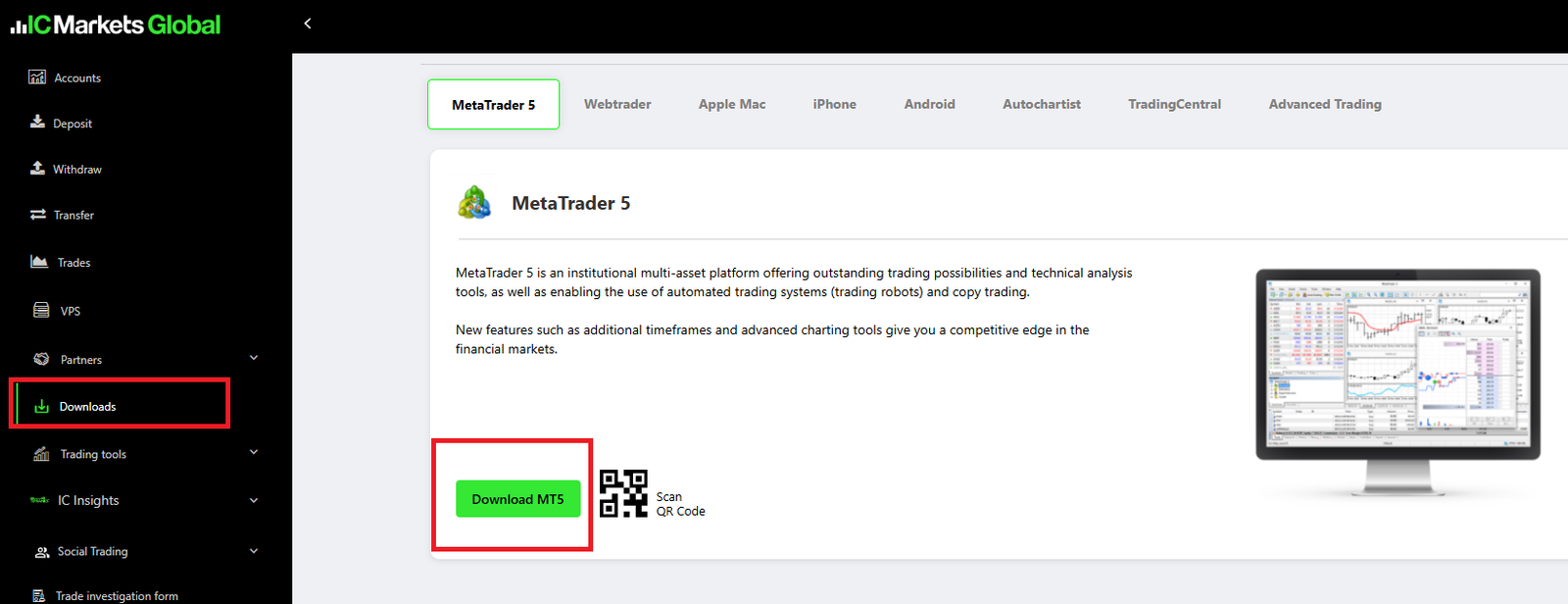
After you can log in to your broker account, open the broker’s Client Area (Client Portal) and download the MT5 installer.
After downloading, check that a file like (BrokerName)setup.exe is saved in your downloads folder (for example: icmarketssc5setup.exe).
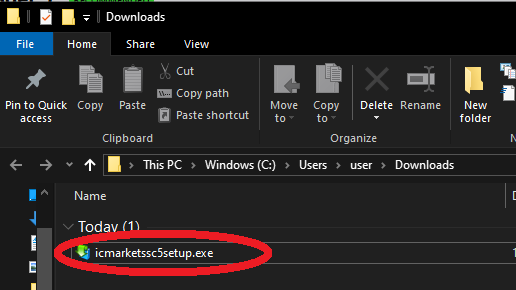
Key point: This .exe file is only the installer. The MT5 platform itself is installed during the setup process.
If You Can’t Find the Download Button
Some brokers make the download link hard to spot. Check these places as well:
- Client Area / Client Portal: “Platforms” or “Downloads”
- The broker website’s “Platforms” page
- Your account confirmation email (it may include a download link)
Note: Avoid random third-party download sites. Always download MT5 from your broker’s official site (or the official MetaQuotes source).
How to Install MT5 (Windows)
- Double-click the downloaded
“BrokerName + setup.exe” - When the setup window opens, click “Next”
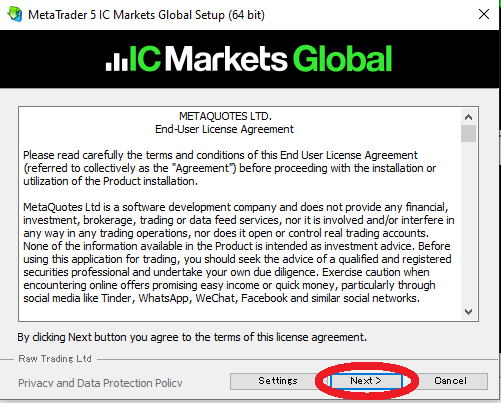
MT5 installation screen on Windows. - Click “Finish” and MT5 will launch automatically
UAC note: If Windows shows “User Account Control (UAC)”, choose “Yes”.
If You Run EAs: Check the Install Location When You Have Issues
If you run EAs and see problems with log writing or file saving, Windows permissions (UAC) and the install/save location may be the reason.
In many cases, changing the MT5 installation folder (where it’s installed/saves files) can help.
Related: MT5 EA Permission Errors (UAC) Fix: Run as Administrator & Install Outside Program Files
First Launch Setup (Logging Into Your Account)
When you open MT5 for the first time, you’ll see the account setup / login screen.
1) Search for Your Broker and Select a Server
Select your broker and choose the trading server. MT5 often shows options automatically.
If your broker isn’t listed, search for it using the search box.
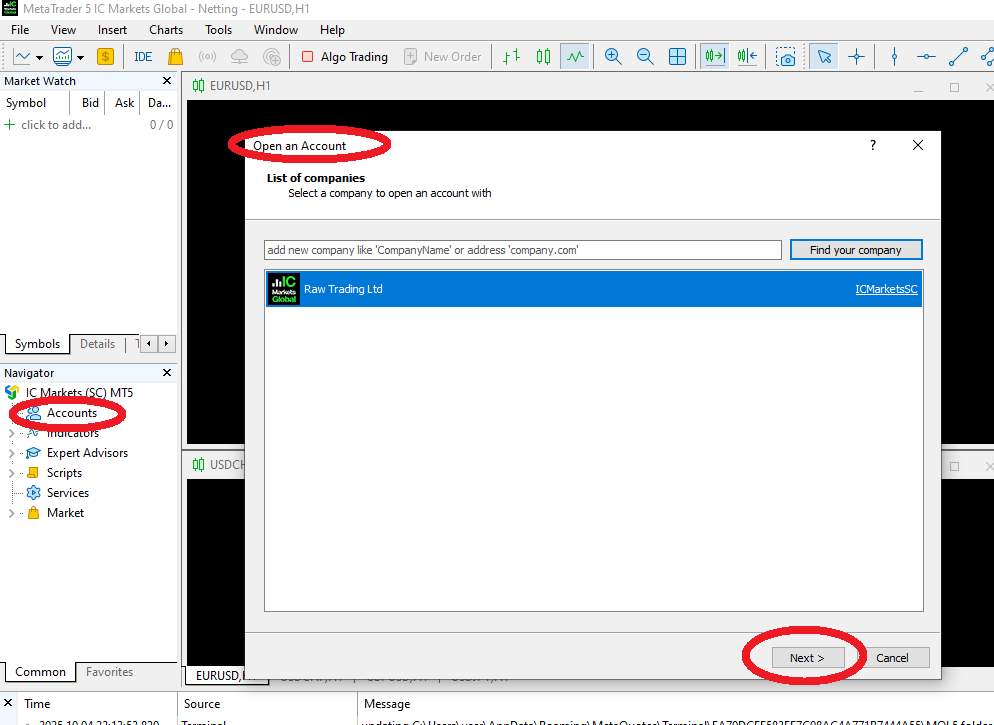
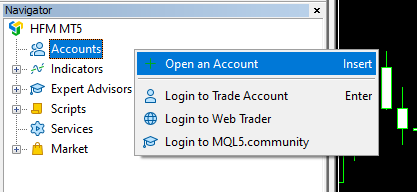
If this screen doesn’t appear, open it from the Navigator: right-click “Accounts” and select “Open an Account”.
2) Enter Your Login Details
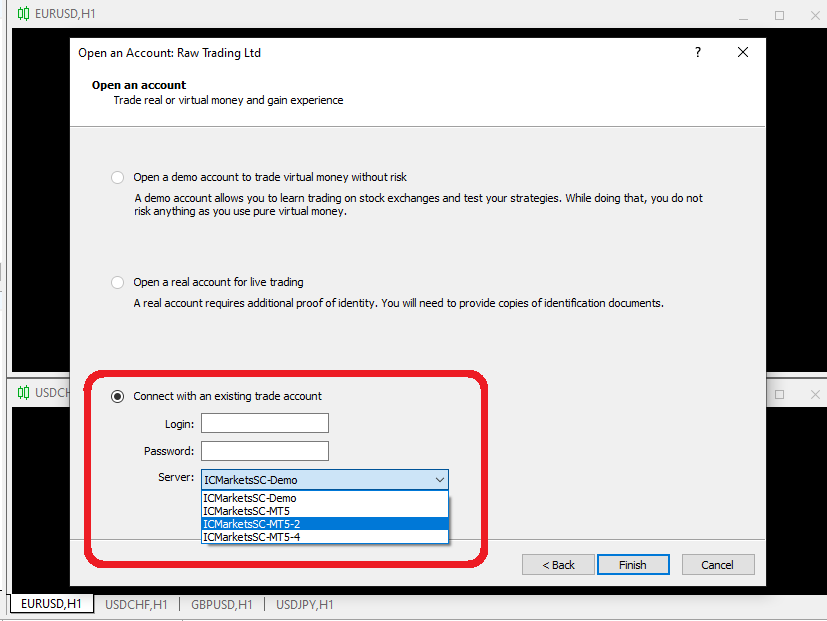
- Login: your account number (from the email)
- Password: the password you set or the one provided by the broker
- Server: select the exact server name shown in the broker’s email
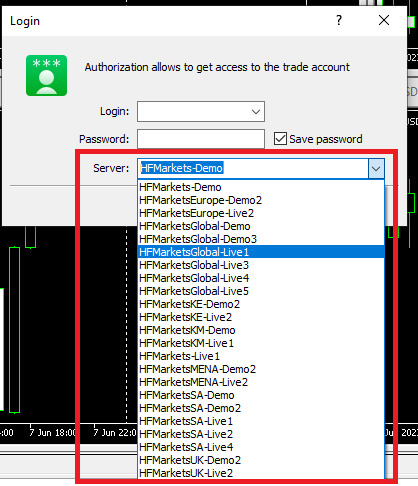
If your target server doesn’t show up in the server dropdown, try this:
- In Navigator, right-click “Accounts” → select “Open an Account”
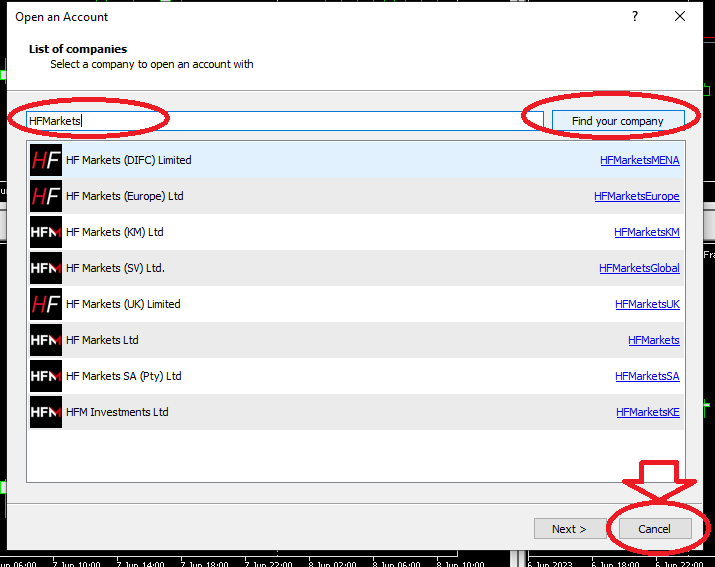
- Search for your broker name (example: HFMarkets)
- Do not click “Next” on that screen—click Cancel instead
- Open the login screen again. The server may now appear in the dropdown
Confirm Login and Open a Chart (Connection Check)
After a successful login, the Connection Status icon at the bottom-right turns green, and prices start moving. That’s your sign you’re connected.

If the bottom-right icon stays as a red stop symbol, MT5 failed to connect.

Quick Troubleshooting Checklist (If You Can’t Connect)
- Wrong server selected: make sure it matches the exact server name from the broker email
- Login/password typo: copy-paste if possible, and watch out for extra spaces
- Internet/network issues: VPN, office networks, or security software may block the connection
Check these points and try logging in again.
Recommended First Settings (Make MT5 Easier to Use)
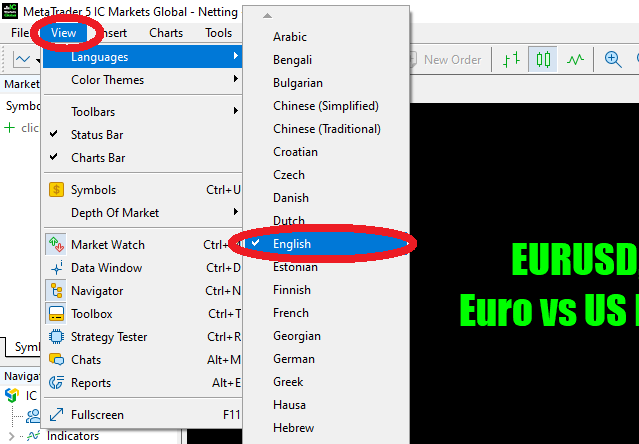
1) Change the Display Language (If Needed)
Go to “View → Languages” and restart MT5.
2) Make Charts Easier to Read (Just the Basics)
- Hide grid lines: right-click the chart → uncheck “Grid”
- Switch to candlesticks: click the Candlesticks icon on the top toolbar
3) Add Symbols and Timeframes (Market Watch / Symbols)
In Market Watch, right-click to show/hide symbols, open charts, and more.
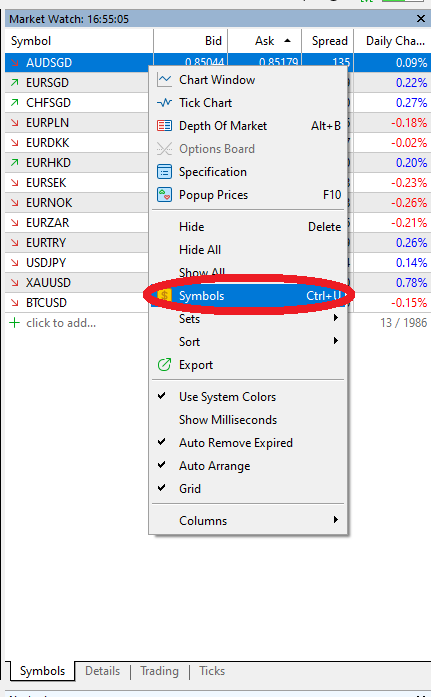
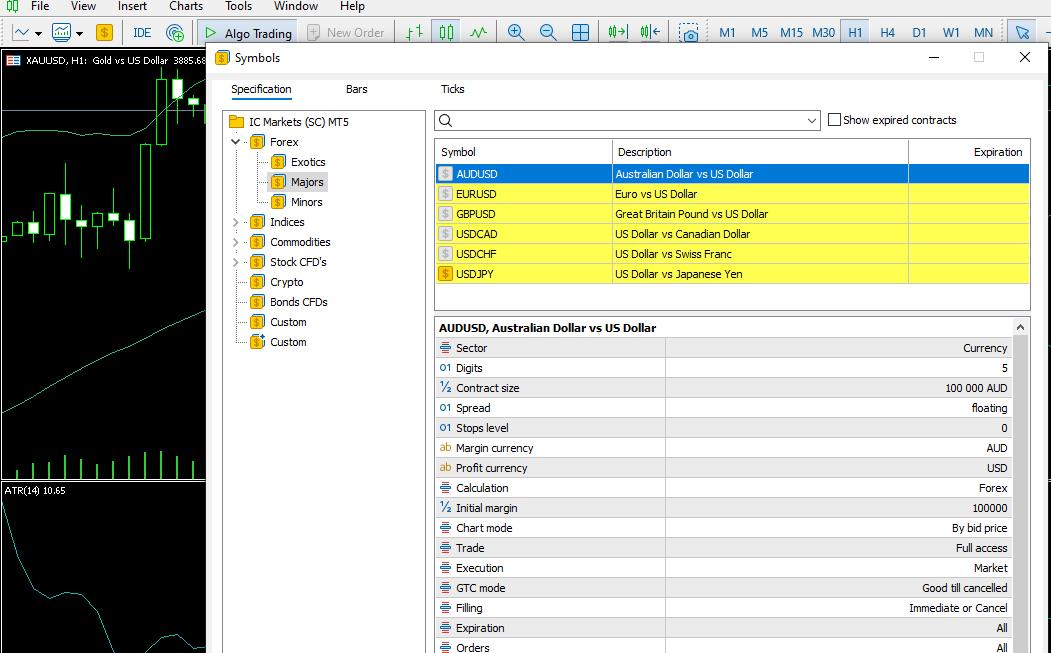
If the symbol you want to trade isn’t listed, you can add it using either method below:
- Market Watch → right-click → “Symbols”
- Click the “Symbols” icon on the top toolbar
Summary: Once You’re Here, You’re Ready to Use MT5
Once MT5 is installed and you’ve logged in successfully, you can open charts, add indicators, or attach an EA (Expert Advisor) and start trading or testing.
関連記事:
What Is a Forex EA (MT4/MT5)? An Automated Trading Guide
How to Install an EA in MT5 (Windows): Correct Folder Setup, Safety Switches & First-Run Checklist
EA VPS Setup Guide: Prevent MT5 Lag, Freezes, and Unexpected Downtime
FAQ
- Q. What if I can’t find my login details?
- A. Check the broker’s “account created” email first. It usually includes the server name, account number, and password. If you can’t find it, log in to the client portal and check your account details there.
- Q. Can I use MT5 on Mac?
- A. Yes. You can get the Mac version from the official source. Some brokers focus their instructions on Windows, so check the broker’s Platforms page (or the official download page) for the correct installer.
- Q. Can I use MT5 on my phone?
- A. Yes. The official MetaTrader 5 app (iOS/Android) lets you monitor prices and place manual trades. But running EAs requires the PC/VPS version.
 MQL5
MQL5
 Myfxbook
 YouTube
 X
X
 GOGOJUN